Resova
How to integrate Resova with Drawbridge to get booking information
Written By Daniel Gleaves
Last updated 3 months ago
Prerequisites
You will need the following:
Admin Username and Password
Waiver URL
Drawbridge Setup
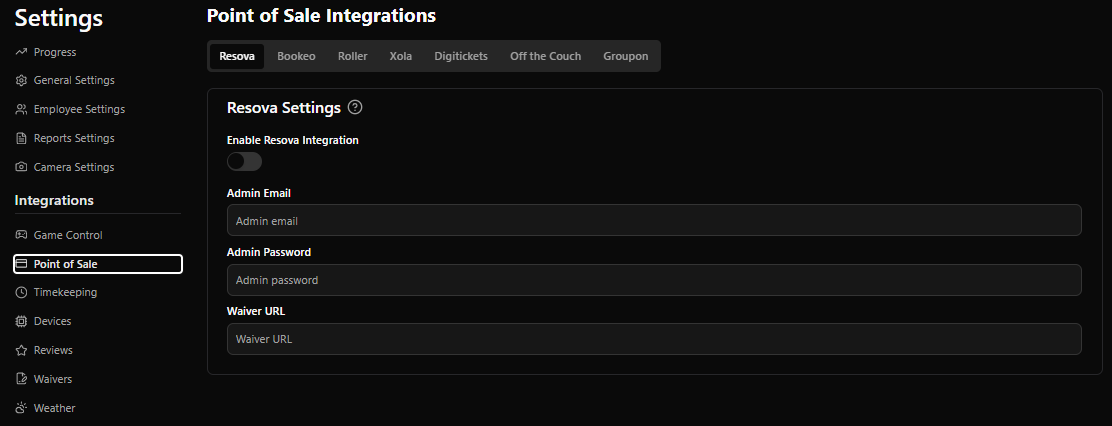
Go to Resova settings in Drawbridge
Settings → Point of Sale → Resova
Fill in admin login credentials and waiver URL
Enable Resova Integration
Click save
This will connect to your Resova account and begin syncing bookings.
Map each of your games to a column in Resova
If you have any event bookings, you can map those to
not-a-game.You can also set a Drawbridge-specific display name and set the expected reset time.
Resova Setup
We also support Resova webhooks in order to sync Resova data in realtime. The webhook will send an update as soon as you change information within Resova to Drawbridge, ensuring data is always up to date!
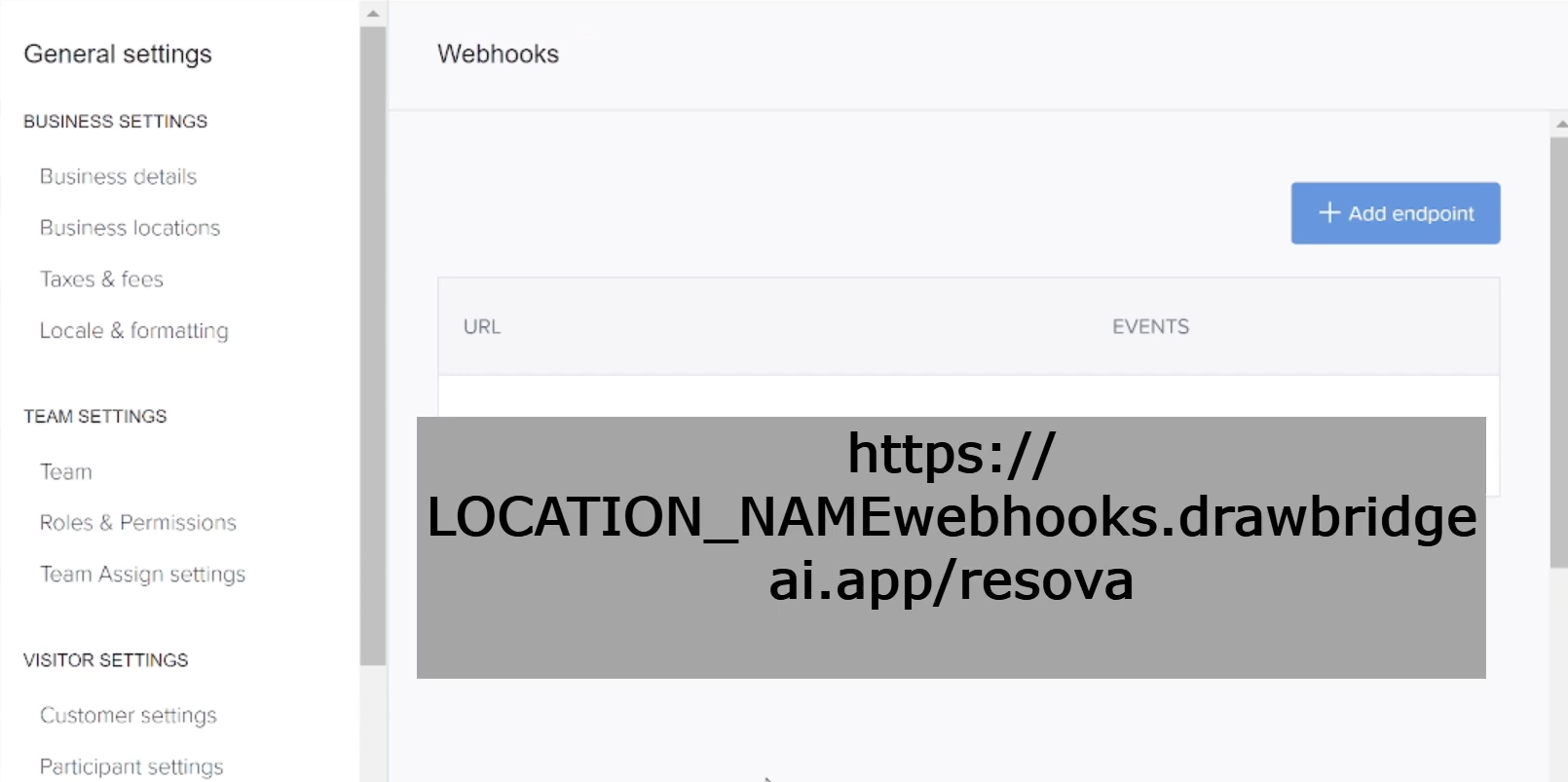
Go to your Resova settings page
Click on Webhooks
Add your location’s webhook URL (contact support if you need this)
https://{venue}webhooks.drawbridgeai.app
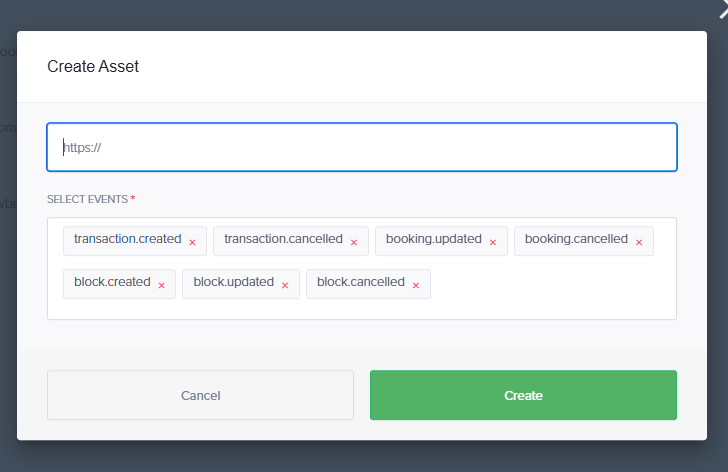
Make sure the webhook is enabled
If the icon is red, the webhook is off and will not run.
Still need help? Share an idea