Set Up Remote Access - VPN's
Access Drawbridge from anywhere!
Written By Daniel Gleaves
Last updated 3 months ago
Overview
The VPN add-on lets you reach your Drawbridge dashboard from any device with a modern web browser—laptops, iPads, iPhones, Android phones, and more
Access is secured with Tailscale VPN
If you already have a VPN set up, it should work fine with Drawbridge. This is an optional add on for those without an existing VPN. Note that this VPN gives you remote access only to Drawbridge.
Before you begin
Pick one Gmail/Google Workspace compatible account for the venue (e.g., myvenue.vpn@gmail.com). You will need to be able to use “Sign in with Google”
Send that address to the support email so we can activate it
One account covers up to 10 devices and anyone who knows the password can connect
Once subscribed, we will send you an invitation to join our Tailscale network.
Setup
1. Sign in and connect
You will receive an email with an invitation to join our Tailscale Network.
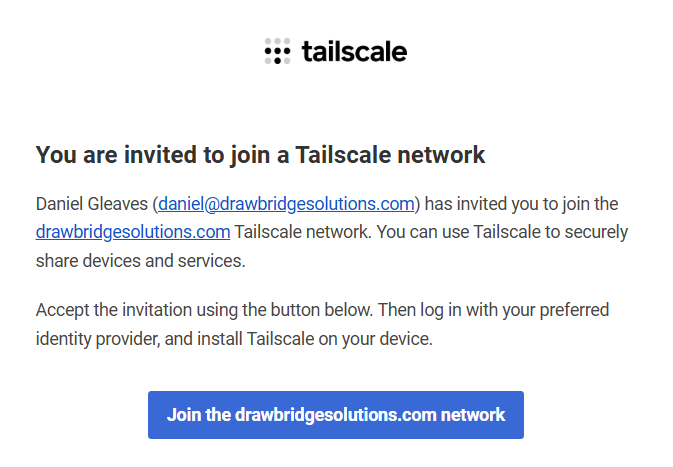
Once you receive this email, you can join by clicking the “Join the drawbridgesolutions.com network.”
Open the invitation link in the email
Choose “Sign in with Google”
Use the email address you provided us
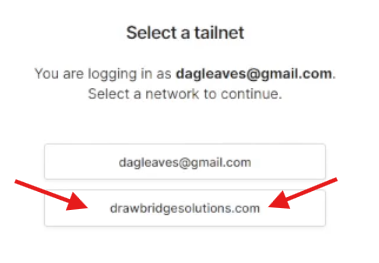
Select drawbridgesolutions.com as the network you’re joining
Click connect
2. Install Tailscale
Download for Windows, macOS, iOS, Android, or Linux: Download | Tailscale
Sign in
Ensure drawbridgesolutions.com is selected as your Tailnet
3. Ensure Network is Correct
When you sign in to Tailscale on a device, ensure that you have signed into the drawbridgesolutions network. When you sign in, you will be asked to choose a network. Select “drawbridgesolutions.com”
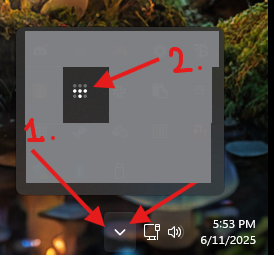
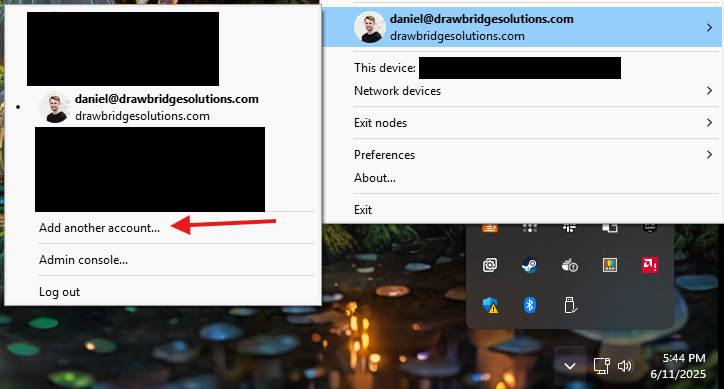
Once you are signed in, it should say “drawbridgesolutions.com” underneath your name when you click on the Tailscale icon in your system tray.
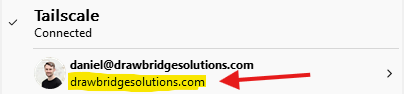
If it does not say “drawbridgesolutions.com” here, you will not be able to connect to your location remotely.
What do I do if it does not say “drawbridgesolutions.com”?
Hover over your name
Click Add New Account
Sign In
Select the “drawbridgesolutions.com” network as shown above
4. Open Drawbridge (from any browser)
Your location impacts the address you need to enter:
Inside the venue:
yourlocation.drawbridgeai.app - VPN not required
Away from the venue:
Ensure Tailscale is installed, running, signed in, and turned on.
Ensure that “remote” is the second segment in the URL after your location.
Each venue has its own “location” name and backup IP. If you’re unsure of yours, please contact support.
5. Need help?
Send us an email: support@drawbridgesolutions.com
Organizational Emails
If you have an organization email (not gmail.com), Tailscale will assign the first user to join Tailscale as the primary Admin. They must allow other users to join “external” Tailnets in order to join the Drawbridge network
For the first email, they should login to Tailscale in the browser and navigate to https://login.tailscale.com/admin/settings/general and set Join External Tailnets to Everyone at the bottom

Still need help? Share an idea