Tuya Devices
Connecting Tuya Smart Devices to your Drawbridge Server
Written By Taylor Reed
Last updated 7 months ago
1. Download the Tuya - Smart Life app
2. Create an account and add your devices to it
3. Create a Tuya Developer Platform account (https://platform.tuya.com/)
4. Select ‘Cloud’ on the sidebar menu

5. Create a Cloud Project (only needed for initial setup or when adding new devices)
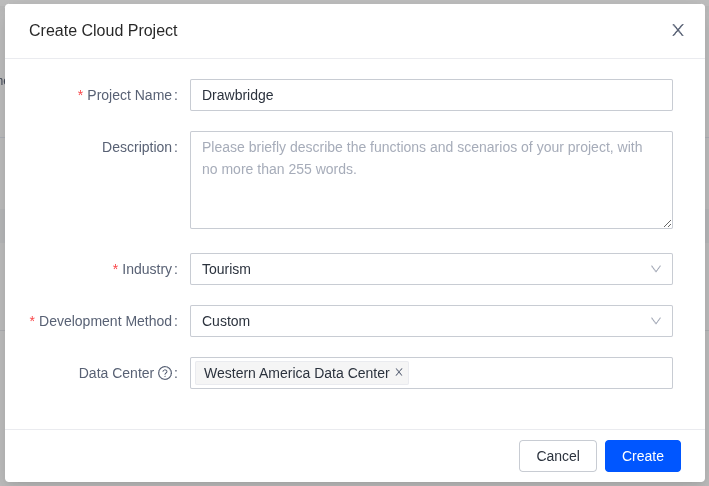
6. Open the newly created project
7a. Go to Authorization > Cloud Authorization
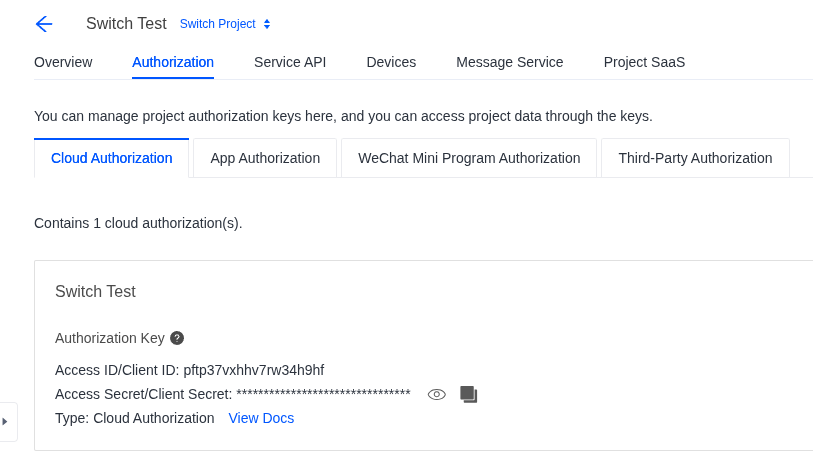
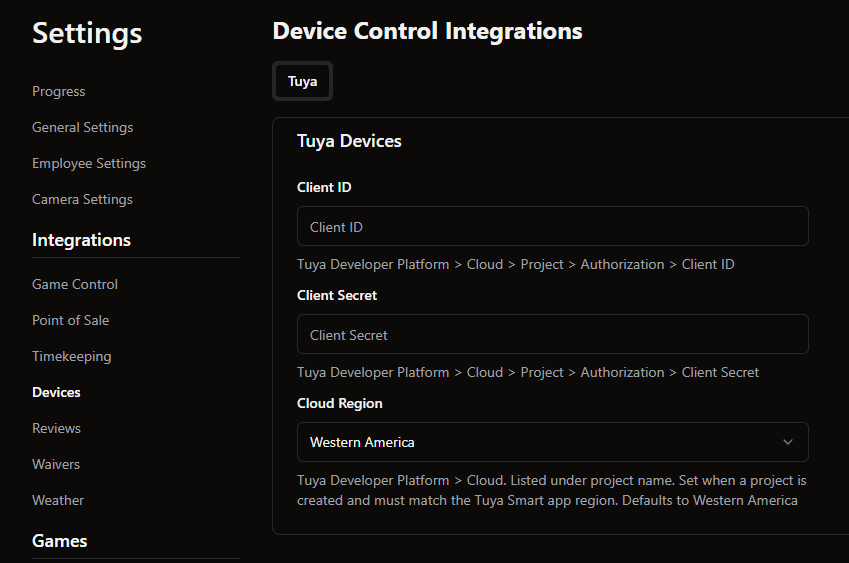
7b. Copy the Client ID and Client Secret and paste them into Drawbridge
8a. Link your Tuya - Smart Life App account with the Developer Platform project. (Devices > Link App Account)

8b. Click the "Add App Account" (blue button on the right) and "Tuya App Account Authorization", then scan the QR code from the app using the scanner in the top right of the "Me" tab
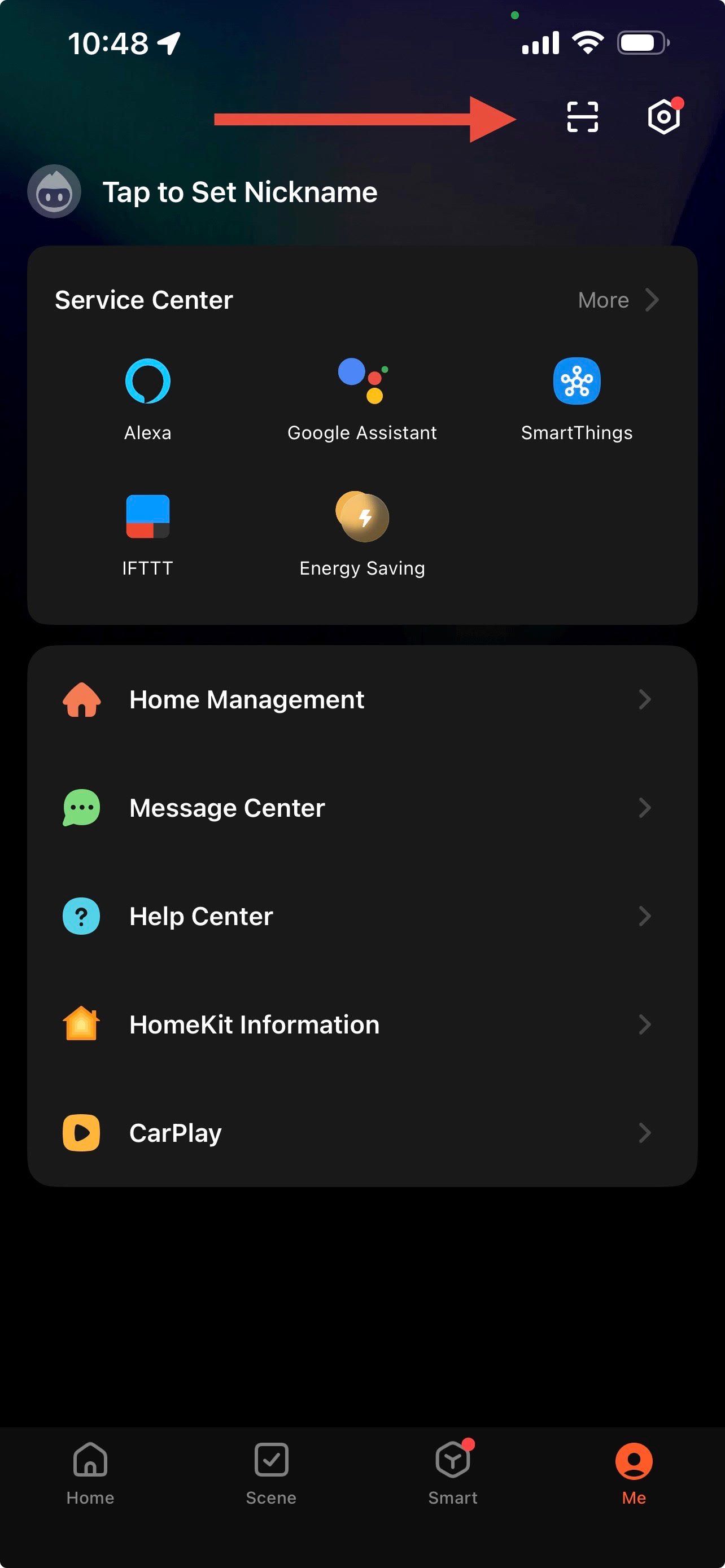
9. Make sure your devices now appear under the "All Devices" tab of the Cloud Platform. Then go into Drawbridge and click "Sync New Devices"
10. Your devices should appear and allow you to map them to a room! Gateway devices can be ignored since they are not controllable, so they do not have to be mapped.
If you run into any issues, ask us for help!
Contact us at support@drawbridgesolutions.com
Still need help? Share an idea