3 Bar Menu
All information in the 3 Bar Menu and how to use it
Written By Emma Williams
Last updated 3 months ago
Hall of Fame
A ranking of fastest escape times for each game. Left list comprises all time and the right lists for the last 30 days. These only include games run on Drawbridge with a booking claimed.
Game Statistics
Game Forensics
Game forensics breaks down activity during a specific game run in Drawbridge. Select the game name, date, and time of the game you’re curious about. This will bring up information about when they checked in, when their game started, and all kinds of information about what happened during their game. You can see if any reset errors or repairs were logged, how many hints were sent and when, if time was added, and who hosted/GM’d their game.
This section can be helpful if there are specific customer complaints or questions about a game as it lays out what exactly occurred.
Maintenance List
View maintenance issues logged in the venue. See who submitted them and when. Log new issues, edit or add notes to old ones. Mark issues as fixed when they’ve been completed. Update severity levels or safety flags.
Hall of Fame
Displays fastest escape times (ever) for each game. Only includes games that were claimed and are attached to a booking.
Staff Leaderboards
Open the Leaderboard and display it in the control room or at the front desk during a busy shift. Watch the numbers change and review mentions update in real time! If your leaderboard has gaps, there might be parts of Drawbridge you aren’t using fully.
Reviews: Ensure that google integration is turned on, add staff alternate spellings on this page as well.
Time resets using the clock in Drawbridge. Add max reset times under the Point of Sale tab in settings. Any time over this limit will be highlighted red.
Rebookings are counted from your booking system as long as the format of the rebooking code uses an employee name in Drawbridge and one of the following (not case sensitive) formats:
NAMErebook%
20-NAME (can be any 2 numbers so 50- or 30- also works)
rebookNAME% or replayNAME%
rebook-NAME% or replay-NAME%
Gamemaster leaderboard will fill automatically as long as end summaries are being submitted for games. Hours may not fill if timekeeping isn’t integrated.
Average hint response time will auto calculate. If you don’t have Eavesdrop speakers installed, the spoken percentage will always be zero.
Daily tasks completed will automatically fill as long as there are daily tasks set up in general settings
All of the numbers on this leaderboard are highlighting high performance. This is a great way to encourage friendly competition within your venue whether they’re doing faster resets, completing more daily tasks, or asking for more reviews.
Magic Moments
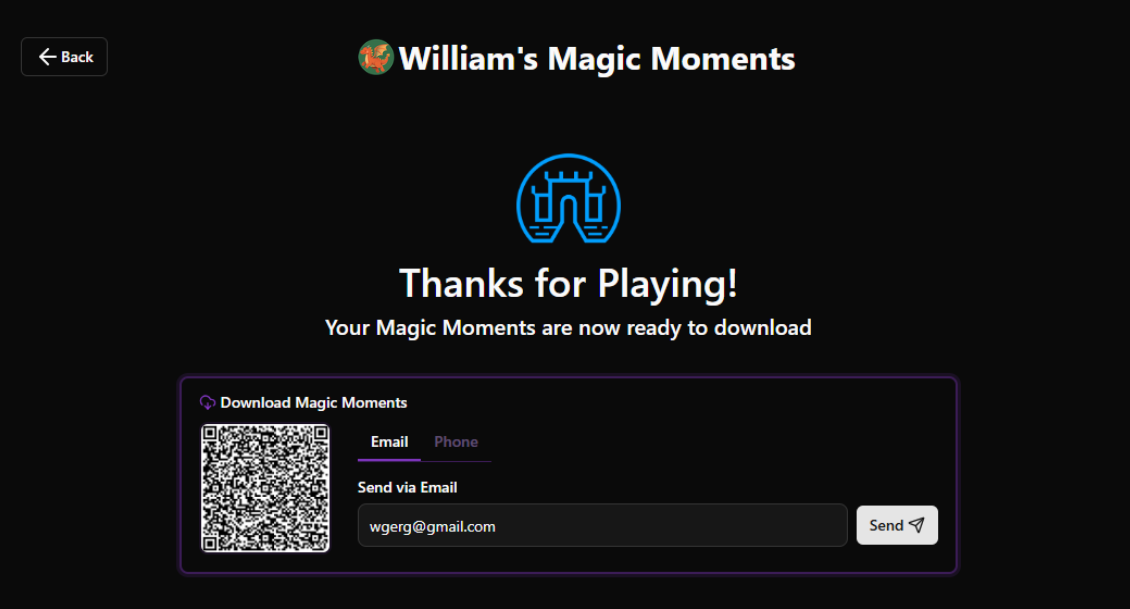
See a list of all games with Magic Moments recorded for a specific date. Click view to open a window with all moments and select which ones you’d like to export. Then send them directly to your customers with an email or text.
This can also be launched into a self serve guest view, where they can select their own clips.
Surveys
Brings up a customer facing screen that links surveys to games that have escaped recently. Clicking on a game will open a quick survey the customers can complete to rate their experience, state if they would recommend the experience, and leave comments.
If the customer selects the lowest face on the survey, a checkbox will appear at the bottom of the survey stating that they have feedback for the owner. If they check the box, this will send an email with the customers information to anyone who has an email listed in general settings under Manager Emails.
Lobby Display
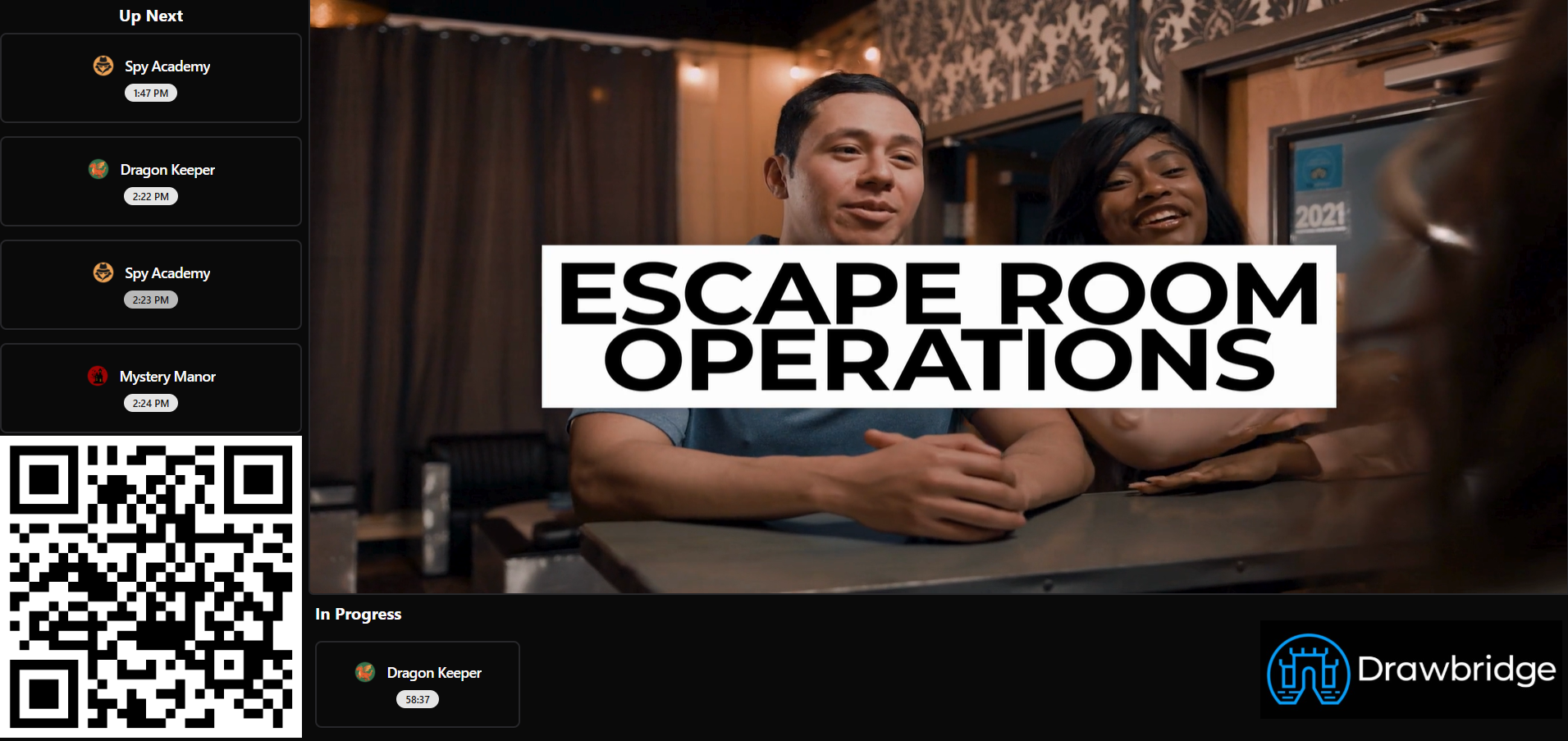
This is where you can pull up a customer facing display for your lobby. It will play a promo video or display an image in the middle and a logo you upload in the bottom right. On the left side, guests will see upcoming games, with currently running games on the bottom. On the bottom left, there is a QR code to link to your waivers.
Inventory
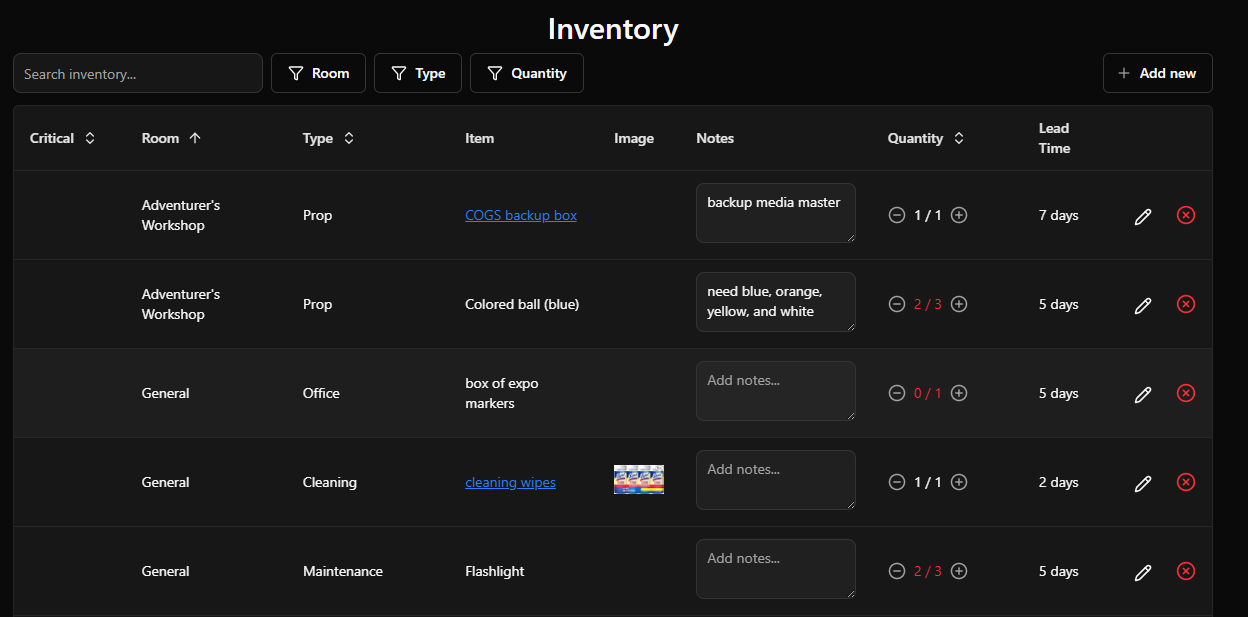
Create inventory items for games. Add photos, reorder links, update quantity, and add notes about items.
Shift Report
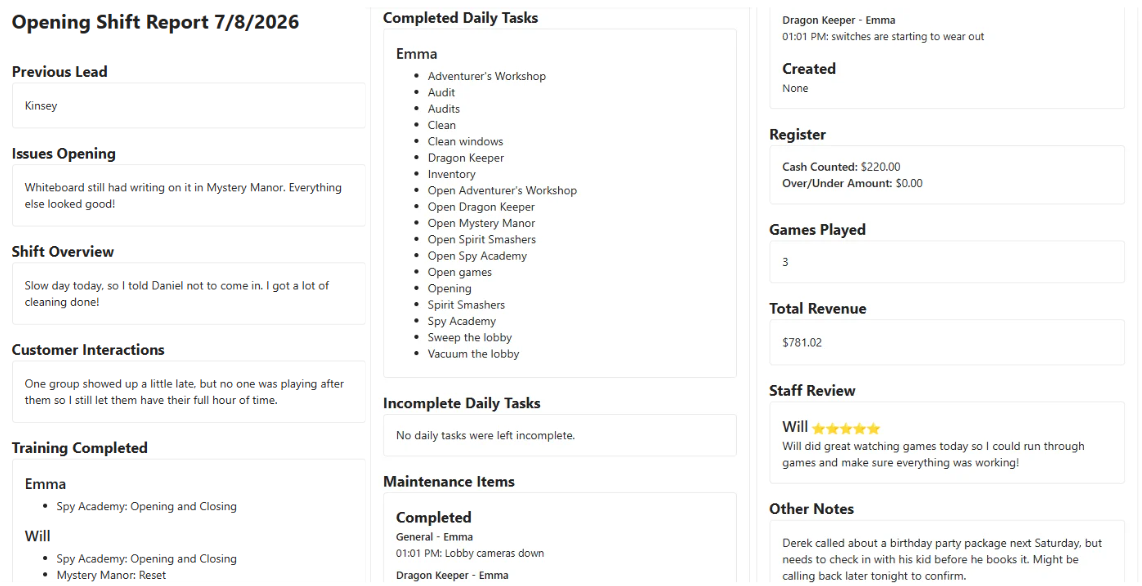
Keep things organized and everyone up to date with shift reports! These are intended for managers to fill out at the end of a shift and then send to owners and other managers. Customizable and partially autofilled.
Training
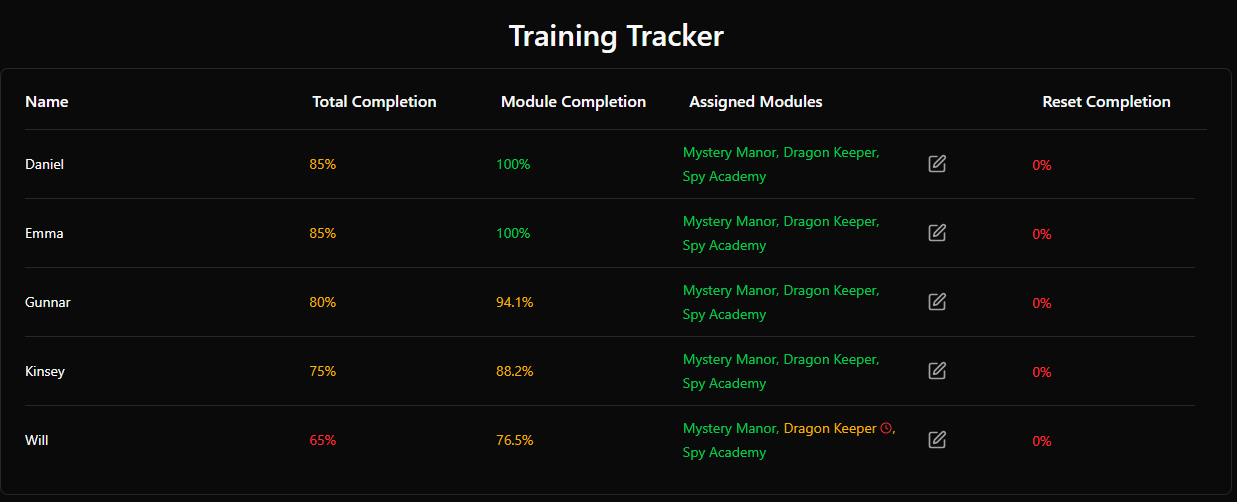
Employees marked as trainable will appear here with assigned modules from employee settings. More about configuring modules can be found here.
Total completion will average module completion and reset completion values for a quick overview. Values are highlighted red if under 70%, yellow between 70% and 99.9%, and green if 100%.
Add modules to an employee by hitting the grey edit sign next to Assigned Modules. Assigned modules will be grey until something inside the module is checked off. Once a task has been signed off, the module will turn yellow as it is in progress. Green modules are 100% completed.
Once you click an employee name, you’ll see a ‘resets’ tab and a ‘modules’ tab. Resets include the fastest timed reset in each game for that employee in the last 4 weeks. They’ll be highlighted red if none of the resets are under the set time. Learn how to set reset times for a story here. Under the modules tab, you’ll be able to see task details within a module and when tasks were signed off and by who. This is where tasks are checked off.
Reviews
Link with Google to see recent reviews for your business and auto generate replies. These replies can be sent from this screen and then get posted publicly on Google. If desired, replies can be sent automatically. Reply prompt and linking your Google account can be found in settings under Reviews. More info on setting up Google integration can be found here.
Schedule Helper
A collection of graphs with information on staffing and revenue in the last few weeks and the next few weeks. May help predict staffing needs based on current bookings when making a schedule.
Reclaim Games
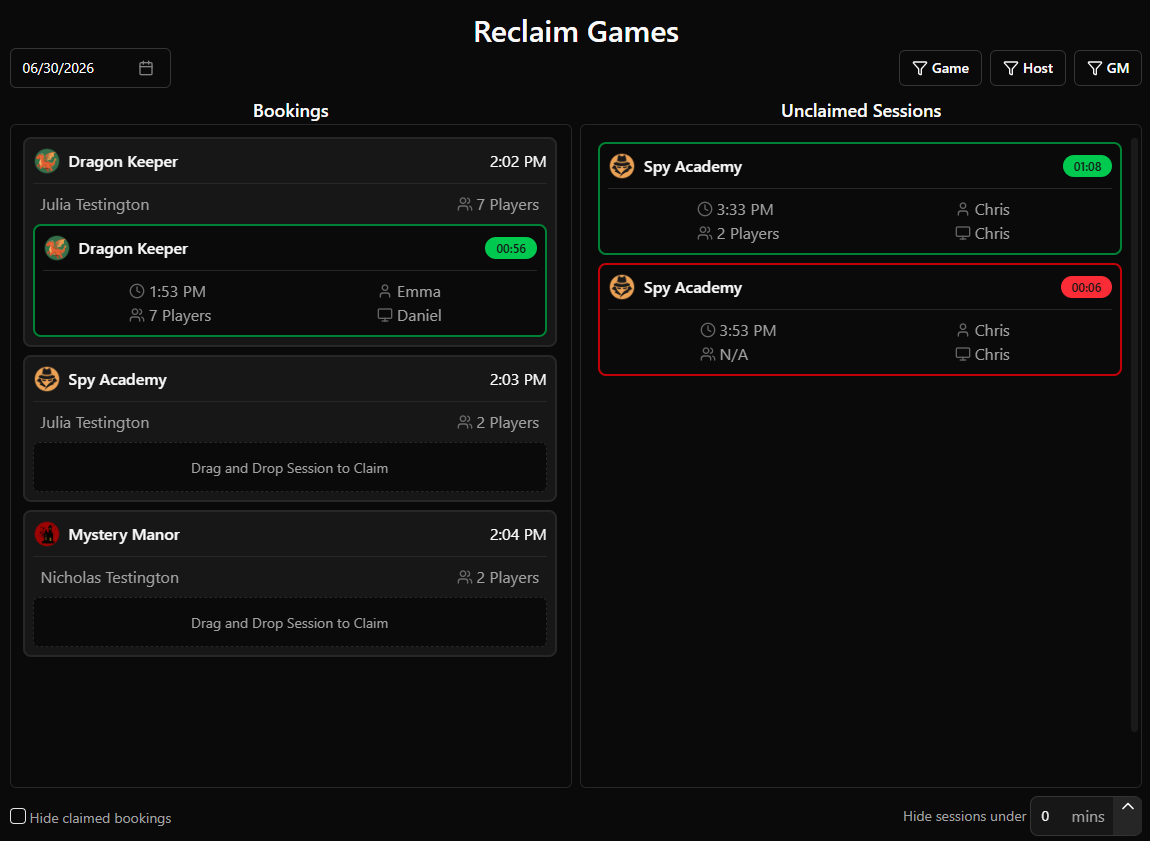
A way to help make sure the correct game session is mapped to the correct customer. Reclaim Games helps you shift game sessions around after games have been completed.
Drag and drop sessions from the right into empty bookings on the left.
Support
The best way to report issues occurring in Drawbridge. This report gets sent directly to us so we can fix the issue or answer your questions as fast as possible.
Hitting the red button will open a menu where the issue can be described, along with severity level, who to contact, and a picture of the issue.
Severity levels are as follows:
Urgent: We will reply within 30 minutes
High: We will reply within 2 hours
Medium: We will reply within next business day
Low: We will reply within a 5 business days
Business hours are in Eastern Standard Time:
Monday-Thursday from 10am-6pm
Friday from 10am-4pm
Many questions can also be answered through our help documents here on Featurebase, so search here for 24/7 support!
Help
Clicking the help button brings you here to see all articles published about Drawbridge. Search keywords or look through categories to find any information you’re looking for, anytime.
Settings
Brings you to all settings for Drawbridge. A complete walkthrough of all settings and what they do can be found here.
Still need help? Share an idea