Magic Moments
Collecting in-game video clips and photos for customers!
Written By Emma Williams
Last updated About 1 month ago
Magic Moments is a feature that you can use to gather fun videos or photos of groups while they’re in-game. These are collected from your cameras, either whenever Game Masters decide to capture them or are collected automatically in the background based on pre-defined moments that you set.
To turn on Magic Moments for a game, you’ll need to navigate to Settings → General → Localization Settings. Here, you’ll need to set a Venue Display Name and Venue Email.
Your Display Name will be used to let players know where their Magic Moments are coming from, and if a customer responds to a Magic Moments email, their reply will be sent to the Venue Email that you set.
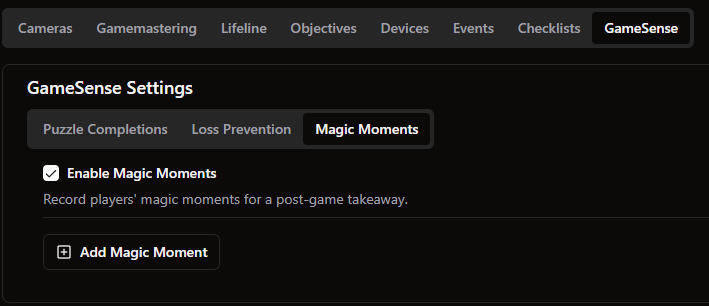
Next, go to Settings → Game Settings → GameSense → Magic Moments. From there, you’ll check the box to turn it on.
Read through the Required Action popup, and update your waivers/point of sale systems as needed. Laws vary based on location, so make sure that you are collecting players’ permission to record and contact them properly.
If your cameras have audio and you’d like to collect sound during these videos, ensure that audio is enabled in your Drawbridge camera settings!
Collecting Magic Moments
There are two ways to capture Magic Moments during the game:
Click to record or capture players during the game in real time.
Pre-define special moments per-game that should always capture a group’s reaction.
Manual Recording
Recording moments during a game is easy. Find whichever camera has the best view of what you’d like to record, hover in the top right of that camera and controls will appear. The camera icon takes a photo of whatever that camera is currently viewing. The circle icon starts a recording and will blink red while recording. Pressing it again will stop the recording and turn it back to white.
Note that a group must be claimed on the hosting page first for the recording controls to appear while gamemastering.
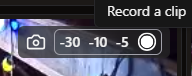
You can record or take screenshots from any camera, not just the main/large one. Multiple cameras can record at the same time if the record button is pressed on each one.
The “-30, -10, and -1” next to the record symbol help you record retroactively. If something happened while you weren’t recording, you can hit the “-30” button and the recording will start from 30 seconds before the button press. The recording will continue until stopped.
We recommend video clips be shorter than 30 seconds. A reminder will pop up in the corner if a recording has been going for a long time.
Automated Recording
You can set moments up to record automatically based on what objective has just become active in a game.
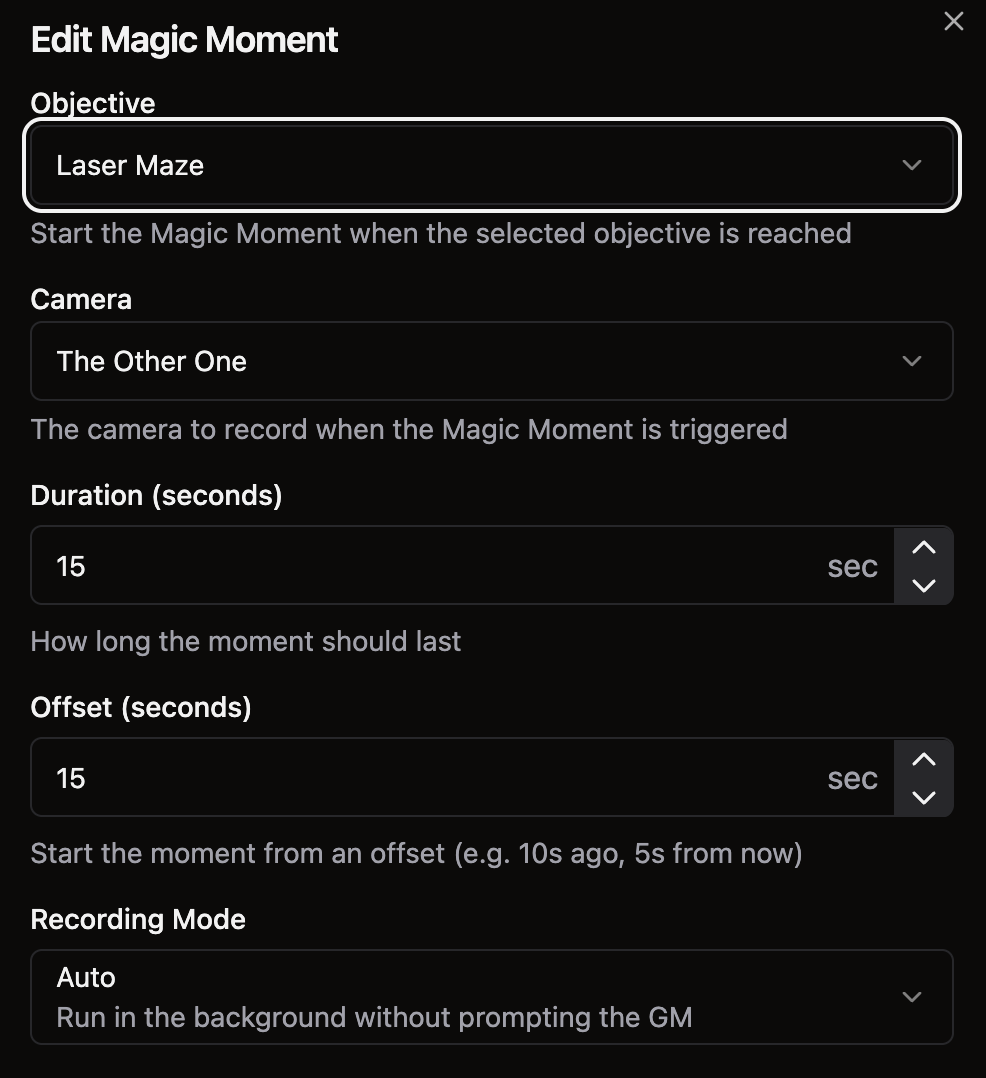
Navigate to Game Settings → GameSense → Magic Moments, enable Magic Moments and add a moment:
Select what objective you’d like it to record and pick the camera that will see what you’re trying to capture.
Select a recording duration (recommended 5-10 seconds)
Select an offset to adjust when the recording starts (can be negative to record retroactively)
Select the recording mode: Auto will record in the background, Check will bring a popup to the GM and ask if it should start recording
Delivering the Magic to Players
Sending off players’ moments is simple, and there are two ways to go about doing it.
For a more hands-on approach, if you find yourself capturing more moments than you want to send, or if your bookings don’t always have an email or phone number attached to them, you may want to manually send Magic Moments to customers.
Never want players to miss out on receiving their Magic Moments? You may want to go the automatic sending route.
Manually Sending Moments
At the end of a game, this symbol will appear when the booking is in the Needs Debrief column if a group has Magic Moments to view.
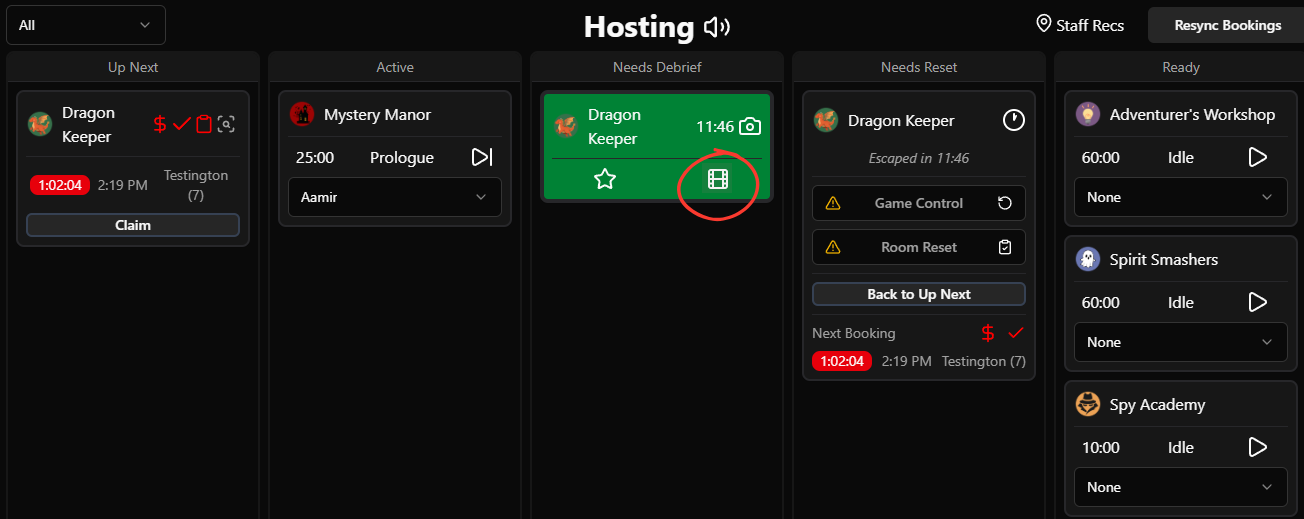
To view those Magic Moments, you can click on the film reel symbol or find Magic Moments in the 3-bar menu.
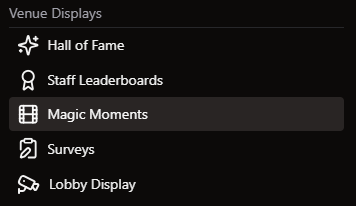
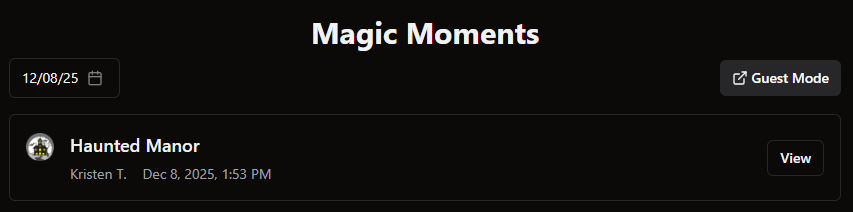
The three bar menu brings you to a page where staff can view and download Magic Moments for a group. From this page, you can also launch a preview page for groups by clicking on Guest Mode in the upper right corner. This simply removes the ability to look at previous days.
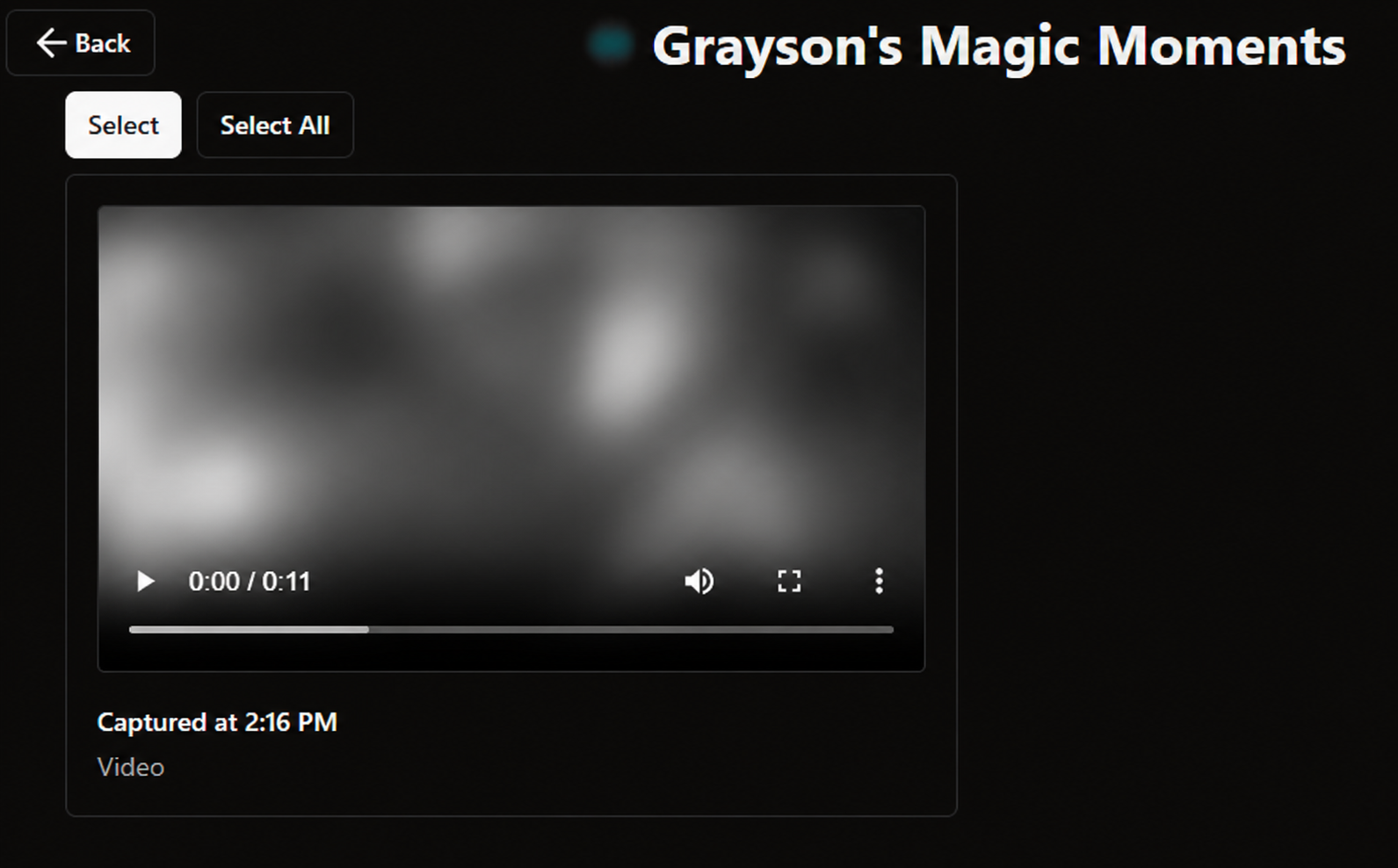
From the Guest Mode page, groups can select their game and preview their Magic Moments. They can also select which ones they’d like to download.
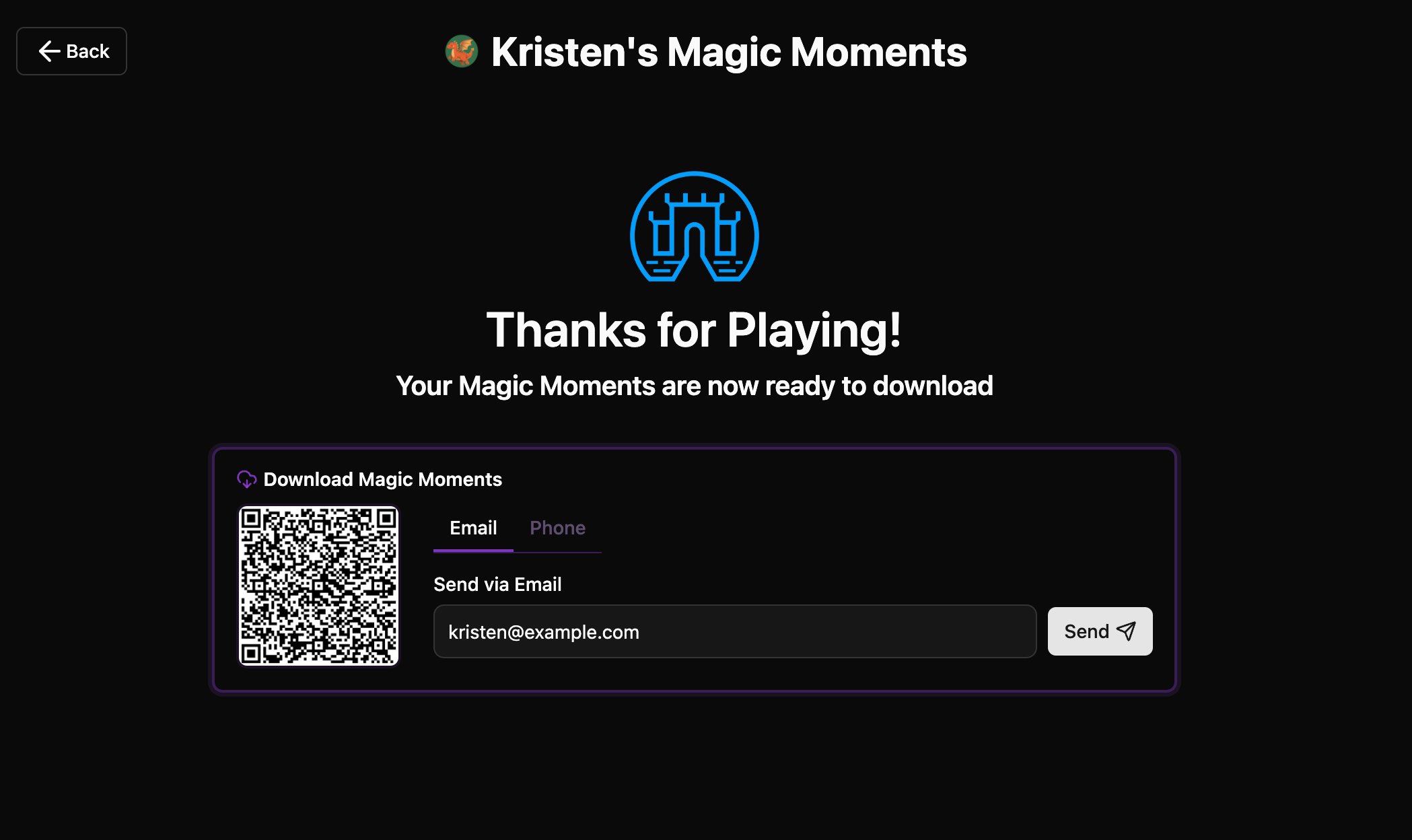
When they press Export, they can enter an email, phone number, or scan a QR code to download their Magic Moments.
The email they receive will look like this (with your venue name and game name in it instead of Drawbridge Demo and Dragon Keeper).
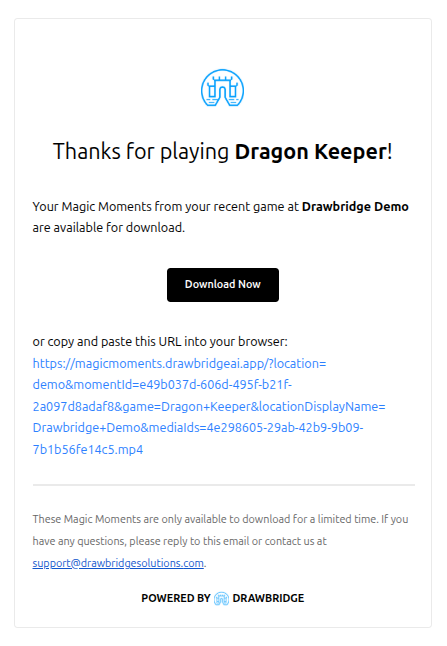
Clicking the Download Now button will take players to a webpage that looks like this. From here, players can view their moments, save them, or share them to social media! The QR Code and text messages route players to this same page.
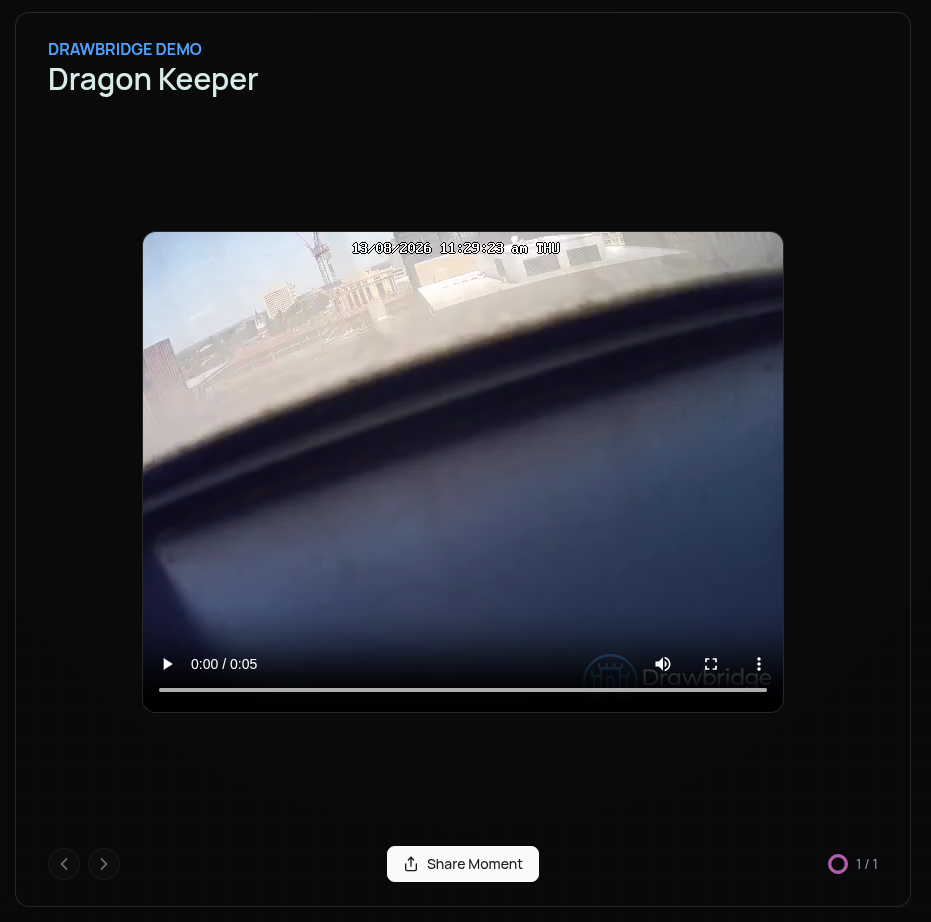
Magic Moments are stored for 31 days after they are captured. This means that 31+ days after a player’s game, they will no longer be able to view their moments from this webpage.
Automatically Sending Moments
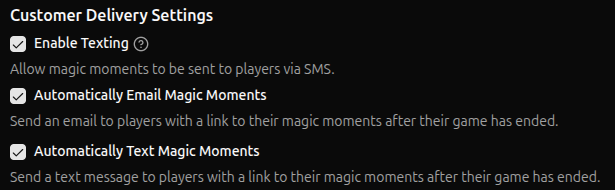
From Settings → Game Settings → GameSense → Magic Moments, you can enable Drawbridge to Automatically Email Magic Moments or Automatically Text Magic Moments. By doing so, you can bypass the moment selection and export process, and customers will automatically receive a link to all of their moments via text or email 15 minutes after their game has ended.
If there is no phone number or email on the customer’s booking (depending on which automatic setting is enabled), Drawbridge won’t be able to send the customer their Magic Moments.
Before those 15 minutes are up, you can preview the Magic Moments that were captured from the Magic Moments page in the 3-bar menu, and deselect any that you don’t want the customer to see. Don’t worry, we kept a countdown in the top right corner of the screen so that you know just how much time is left before those moments get sent off.
Once Magic Moments have been sent to the customer, you will see a note at the top of the page letting you know that the moments have already been exported. Clicking Download will take you back to the page that lets you input another email, phone number, or scan the QR Code.

Adding Magic Moments Consent to Your Waiver
Magic Moments records photos and video of your guests while they play, then delivers those files to them after the game. Before you turn it on, your waiver needs to tell guests that's happening and get their consent.
A Note on the Sample Language Below
We're not lawyers, and nothing here is legal advice. We've put this together because we know what Magic Moments actually does with guest media, and we wanted to save you the work of describing it from scratch.
Consent and privacy rules vary by state and country, and your insurance carrier may have its own requirements. Treat this as a starting point, not a finished document. Have your attorney review it before you publish it, and adjust anything that doesn't match how your venue operates.
What matters is that your waiver covers these five things in some form:
That cameras in the room record guests
That the footage is stored and sent to them
How long it's kept and when it's deleted
That guests can say no and still play
That a parent or guardian is consenting for anyone under 18
Sample Waiver Section
Replace [Venue Legal Name] with your registered business name, the same entity name that appears elsewhere in your waiver.
Photo and Video Capture
By signing, I agree to the following on behalf of myself and any minor I am signing for:
Capture. During my visit, cameras in the experience may record photos and video that include my image, likeness, and voice. I consent to that recording.
Delivery. I consent to [Venue Legal Name] and its technology provider storing these photos and videos and delivering them to me by text message, email, or QR-code link.
Storage and deletion: My media is stored securely and retained for 31 days, after which it is deleted. I may request earlier deletion by contacting the venue.
Right to decline. Participation in the experience does not require me to receive Magic Moments. I may decline capture or delivery by notifying staff before the experience begins.
Minors. If I am signing for a participant under 18, I am the parent or legal guardian, and I give this consent on their behalf.By entering my mobile number, I agree to receive a Magic Moments text after my game. Msg & data rates may apply; msg frequency varies. Reply STOP to opt out, HELP for help
What your staff should know
Two clauses above create obligations at the front desk, so brief your team before launch:
Guests can opt out. If someone tells staff before the game starts that they don't want to be recorded, that request has to be honored. When filling out the Host Summary, your staff can flag that a group does not want to be recorded. This will disable all Magic Moments for that customer’s session.
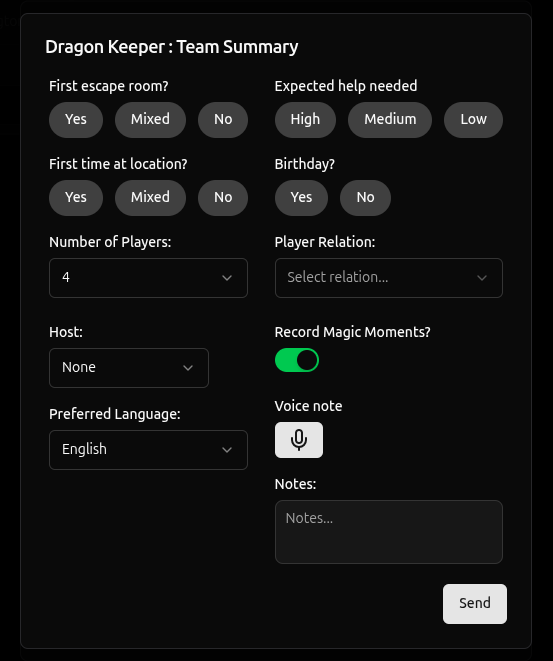
Early deletion requests. Media is deleted automatically after 31 days, but a guest can ask for it sooner. Contact support@drawbridgesolutions.com with the booking time and customer last name for any stored moments to be deleted.
Training Video
A quick walkthrough of Manual Magic Moments using our demo system!
Still need help? Share an idea