Auto-Tuning Ahead / Behind Timer
How Auto-Tuning works for the Ahead/Behind timer, how to enable it for your games, and what to keep in mind when using it.
Written By Aamir Muhammad
Last updated 5 months ago
What Is Auto-Tuning?
The Ahead/Behind timer uses objective durations to show groups whether they're on pace to escape. By default, those durations are set manually — but keeping them accurate over time requires ongoing adjustments.
Auto-Tuning takes care of this automatically. When enabled, Drawbridge looks at all successful sessions from the last 4 weeks and calculates the average time spent on each objective. Those averages become the new objective durations, keeping your Ahead/Behind timer accurate to how real groups are actually playing — without any manual work on your end.
How to Enable It
Auto-Tuning is turned on per game. To enable it:
Go to your Drawbridge settings page
(
http://<Your Venue>.drawbridgeai.app/settings).Find the game you want to enable it for.
Navigate to the AutoTune setting for your game type:
Playbooks games: Playbooks → Objectives → AutoTune Objective Durations
Non-Playbooks games: Objectives → AutoTune Objective Durations
Toggle on the AutoTune Objective Durations slider.
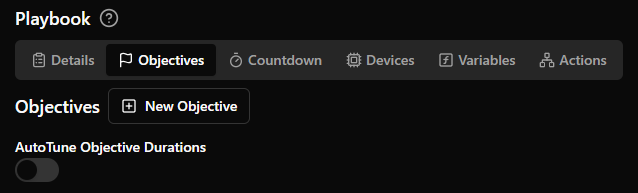
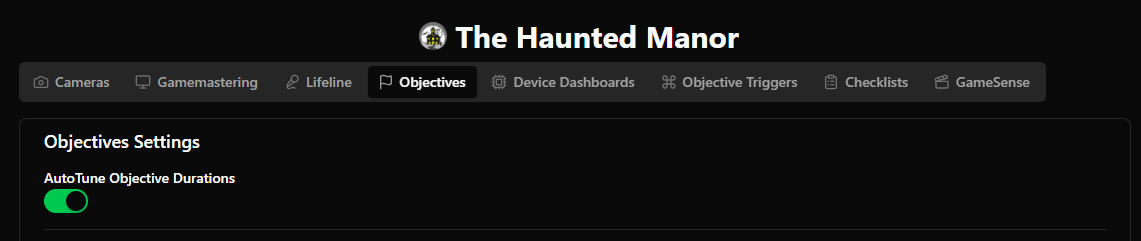
Repeat this for each game you want Auto-Tuning active on.
Things to Know
It only uses successful sessions. Only sessions where the group escaped are factored into the averages, so failed or incomplete runs won't skew your timings.
It looks back 4 weeks. The calculation always uses the most recent 4 weeks of data, so the timer stays current as your player base evolves.
It's per-game. Enabling it on one game won't affect others — you choose which games use Auto-Tuning.
It only uses games where time is not added
Was this helpful?
Still need help? Share an idea