Import/Export Playbooks
Seamlessly transfer games and their settings across venues.
Written By Drawbridge Support
Last updated About 1 month ago
How to Export
You can export any playbook or Mythric story straight from Settings.
Head to Three Bar Menu → Settings → Games, find the game you want, and click Export.
This will download a zip file that contains all of the settings information about your game, and it’s in the perfect format to import your game back into Drawbridge later.

How to Import
Ready to add a new game? Look for the Add Playbook button located under your list of games. Click it, and you’ll see this screen:
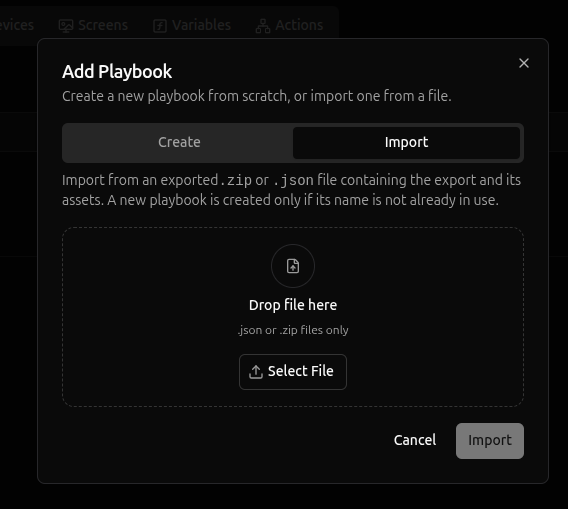
Once here, you’ll drop in your zip file from earlier and click Import.
Why can I import .json and .zip files? The .zip file that you exported above contains all of the file assets that go along with your games (screens, images, videos, etc.), but you can optionally import your game without any of these assets by finding the export.json file within the zip and uploading that. Just keep in mind that you’ll need to add back all of your assets manually later.
Keep Names Unique
Every game in a venue needs its own name, so if you export a game and try to import it straight back into the same venue, it won't work without a few tweaks.
If you’re copying a playbook:
Export your chosen game
Unzip the folder and open
export.jsonin a text editorChange the
namefield and save itRezip your folder
Import it!
When copying a Mythric story:
Follow the steps above OR simply disable the Mythric story before importing it as a playbook.
NOTE: Mythric events’ names, conditions, and actions will be transferred, but some information within conditions and actions will be left blank. Always double check your action configurations!
After You Import: A Few Things to Check
Most of your settings will come along for the ride when you import a game, but a handful of things are tied to your specific setup and will need a quick check:
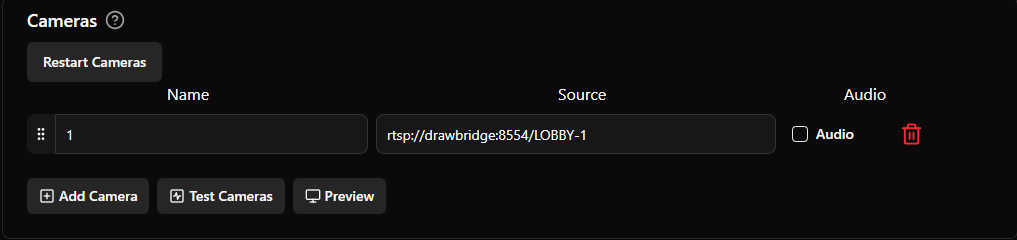
Camera Source
If you’re importing from another venue, the camera source string will almost certainly need adjusting to match the cameras in your venue.
Lifeline Speakers
Make sure the extension is correct. If the game came from another venue, it probably won't match, and you'll need to set up new lifeline speakers.

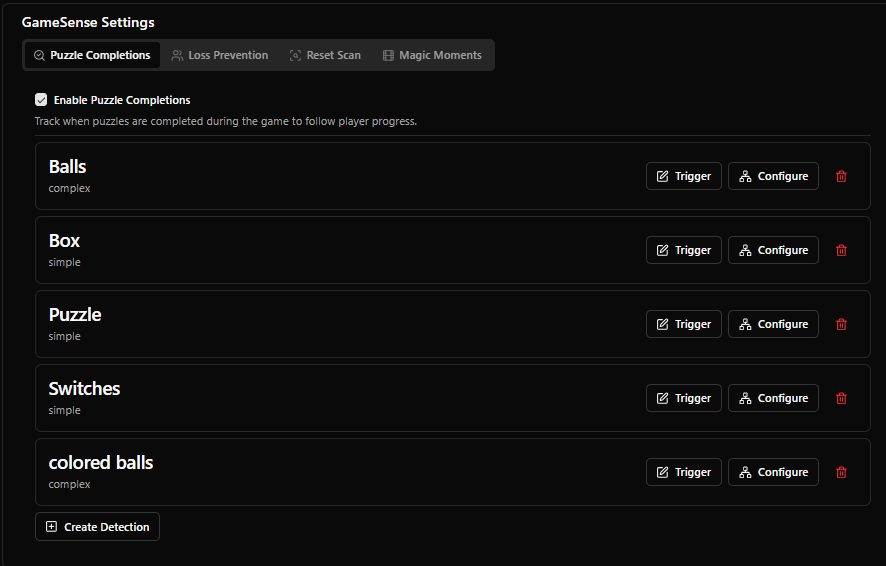
GameSense
Since you'll have a new camera feed, room lighting, and camera placement, you'll need to redraw your detection boxes.
Devices
Update IP addresses and USB ports so everything connects properly again.
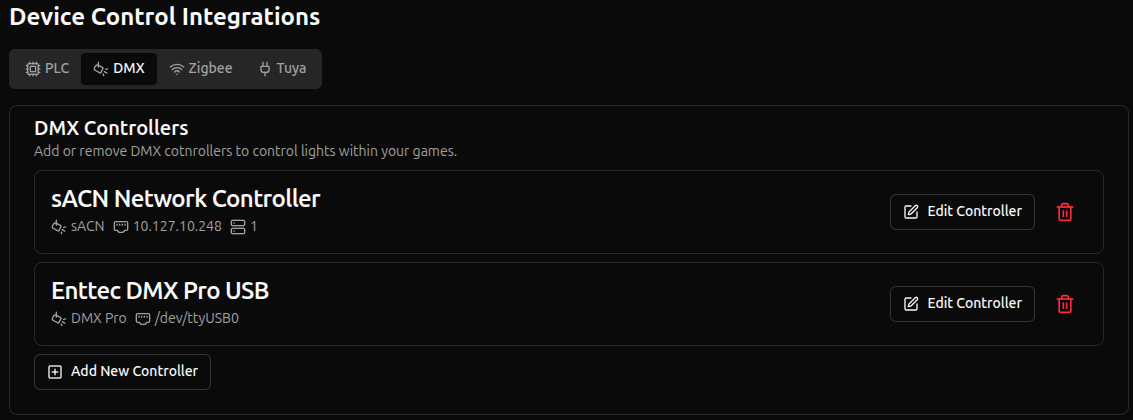
Importing from Mythric? Anything wired into the Mythric server (like a DMX USB device) will need to be physically moved over to the Drawbridge Server.
You’re All Set
Once you've made those adjustments, your new playbook is ready to run! Countdowns, objectives, hints, and all your other configured settings carry over seamlessly, so getting your new game up and running is easy.