Adding Playbook Devices
Add a PLC, DMX, Zigbee, or Tuya controller to your Playbook Game
Written By Emma Williams
Last updated 7 months ago
Configure Your Device
In order to add device control to Drawbridge, you’ll need to add device controls. To do this, navigate to Settings and then find Devices under Integrations. Here, you’ll be able to select what kind of device you’re adding.
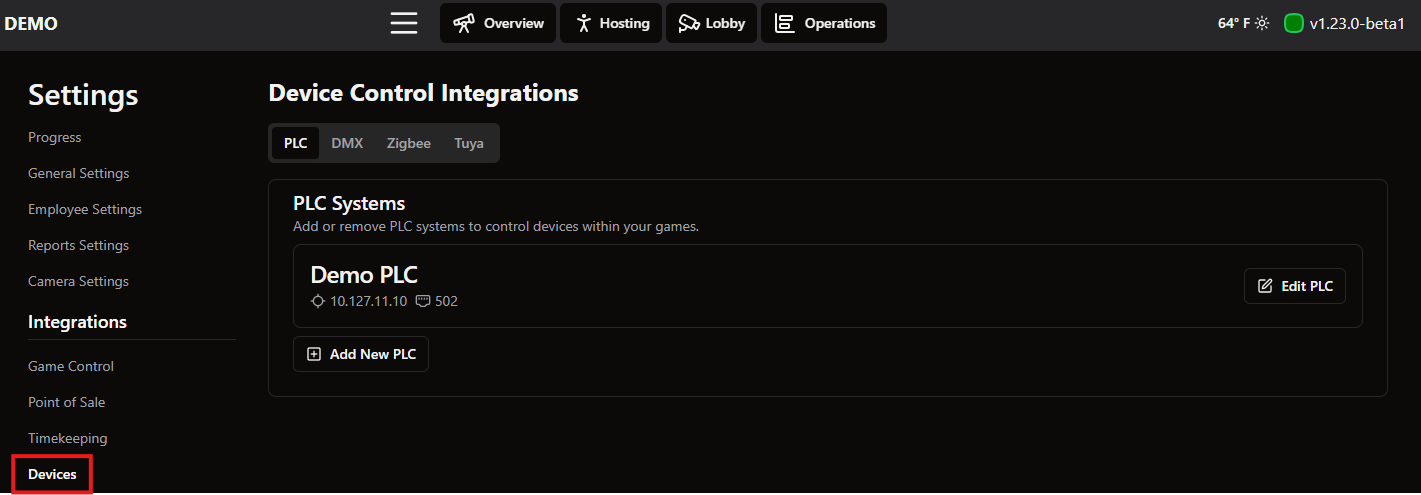
PLC Integration
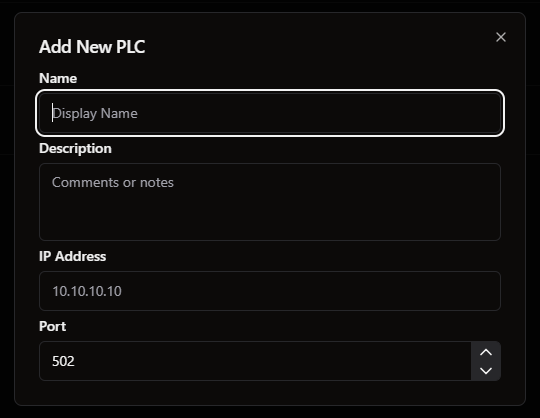
To add a PLC, you’ll need to input the IP Address and port number. Give your device a name and add notes if needed.
DMX Integration
Add a USB or sACN DMX controller on this page. Details on DMX Integration and Configuration can be found here.
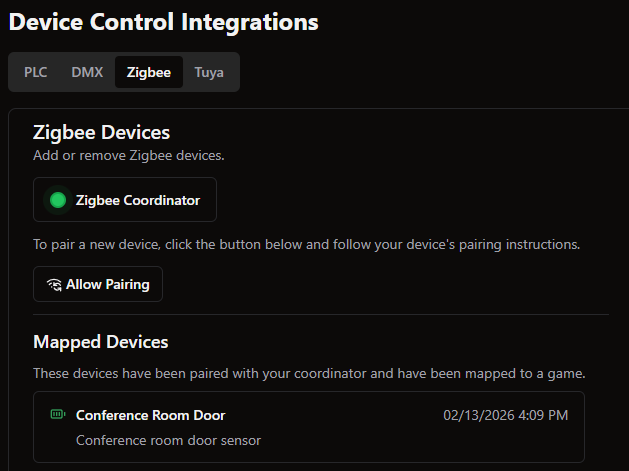
Zigbee Integration
Integration for these devices can look different depending on the model.
Hit the Allow Pairing button to find your device once it is discoverable. You can then map the device to a game and give it a name.
Tuya Integration
Details on configuring these devices can be found here.
Add Your Device to a Playbook Game
Now that Drawbridge can find your device, navigate to Game Settings → Playbook → Devices.
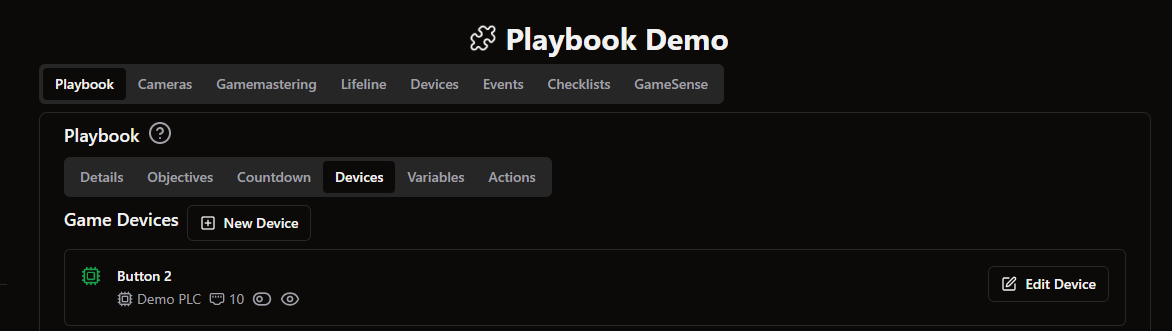
Hit the New Device button to add devices that are specific to this game.
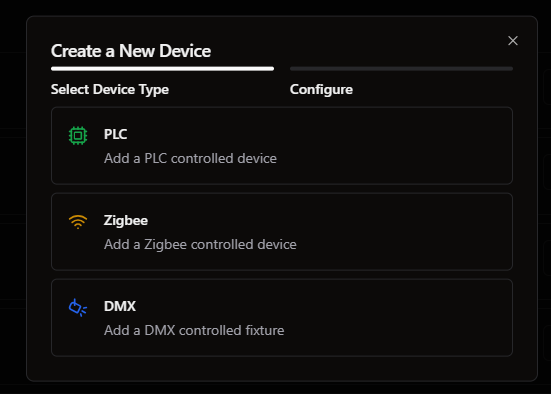
PLC Devices
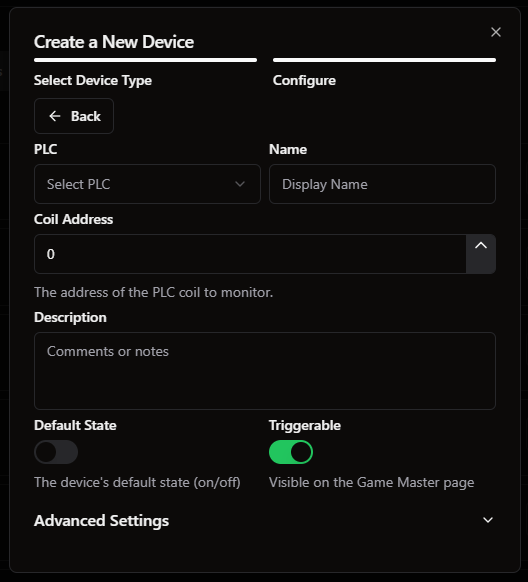
Select the PLC that controls your device. If you don’t see the PLC you need, check out the PLC Integration section above.
Set the coil address for the device you want to control and give it a name. You can also select if the device’s default state is On or Off and if you want it to be visible to employees.
DMX Devices
Details on setting up DMX devices can be found here.
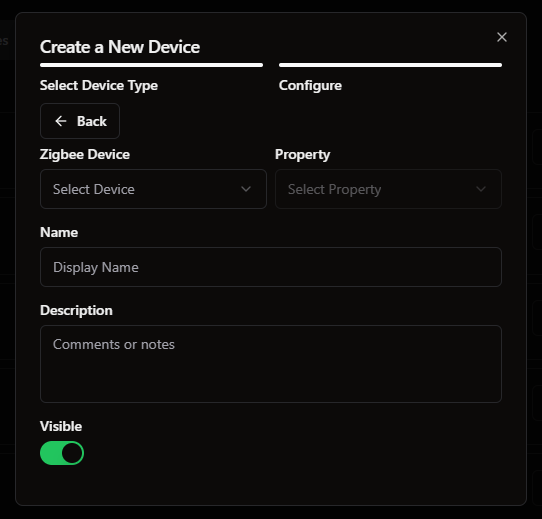
Zigbee Devices
Select the device you’d like to add from the dropdown. Give this device a name and property and determine if it should be visible to employees.
Once devices are assigned to Playbook Games, you can set up Actions to control them.
Still need help? Share an idea