Device Dashboards
Keep track of partial completions!
Written By Taylor Reed
Last updated 5 months ago
Device dashboards can be created for objectives throughout your game. They allow you to view, in real-time, when devices are triggered on or off.
To set up Device Dashboards for your game, navigate to the Game Settings for the appropriate experience and click on the “Devices” tab directly under the Game Title.
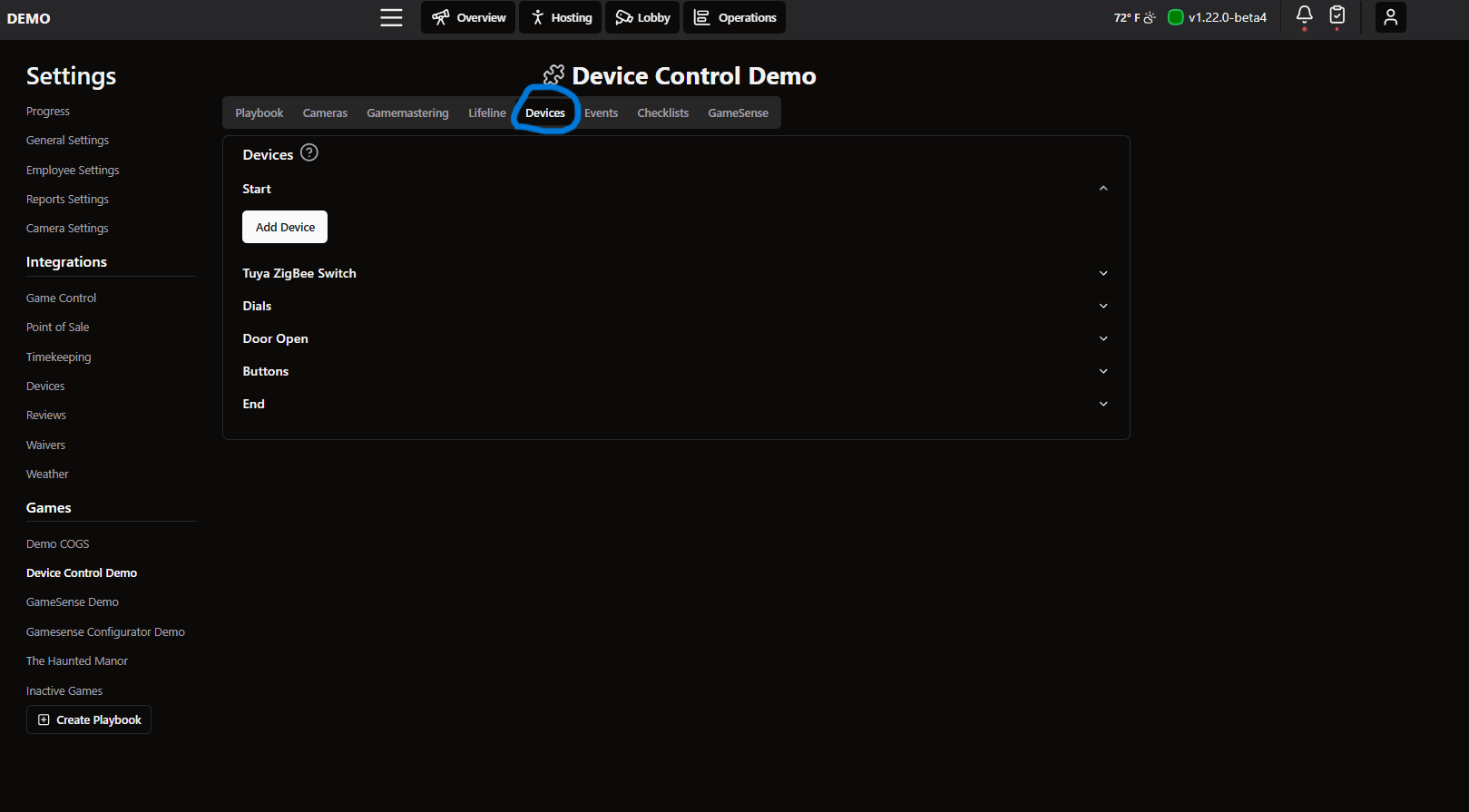
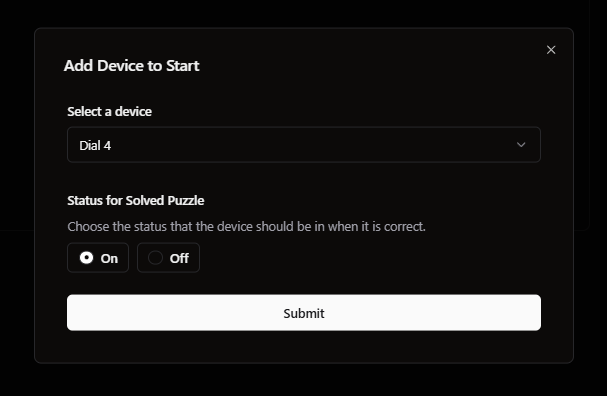
From this Devices tab, you can add devices to your objectives. Click “Add Device” and select one of the devices from the dropdown menu. After selecting a device, you’ll need to set the “solved” status for the device. This lets Drawbridge know which state is considered correct and should complete the puzzle.
Make sure to click Submit, then repeat this process for the rest of your devices/objectives.
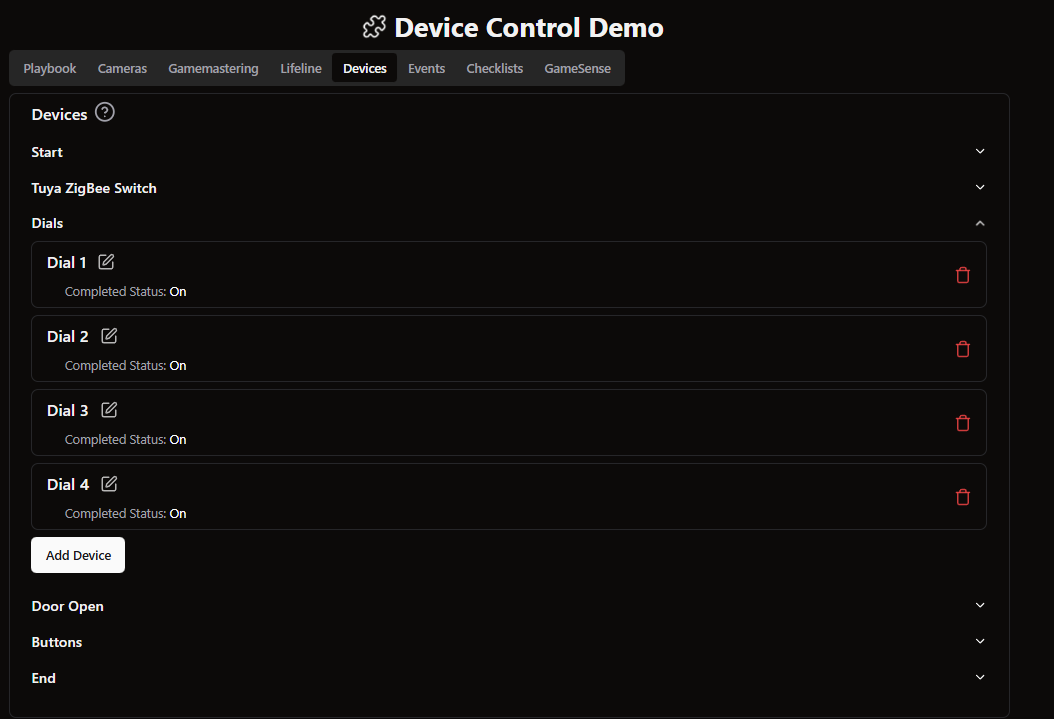
As you add your devices to objectives, they appear in a list beneath the objective name. From here, you can edit the devices (the edit button is next to your device names) or remove them using the red trashcan icon.
Once you have added all your devices to their objectives, you are ready to view Device Dashboards!
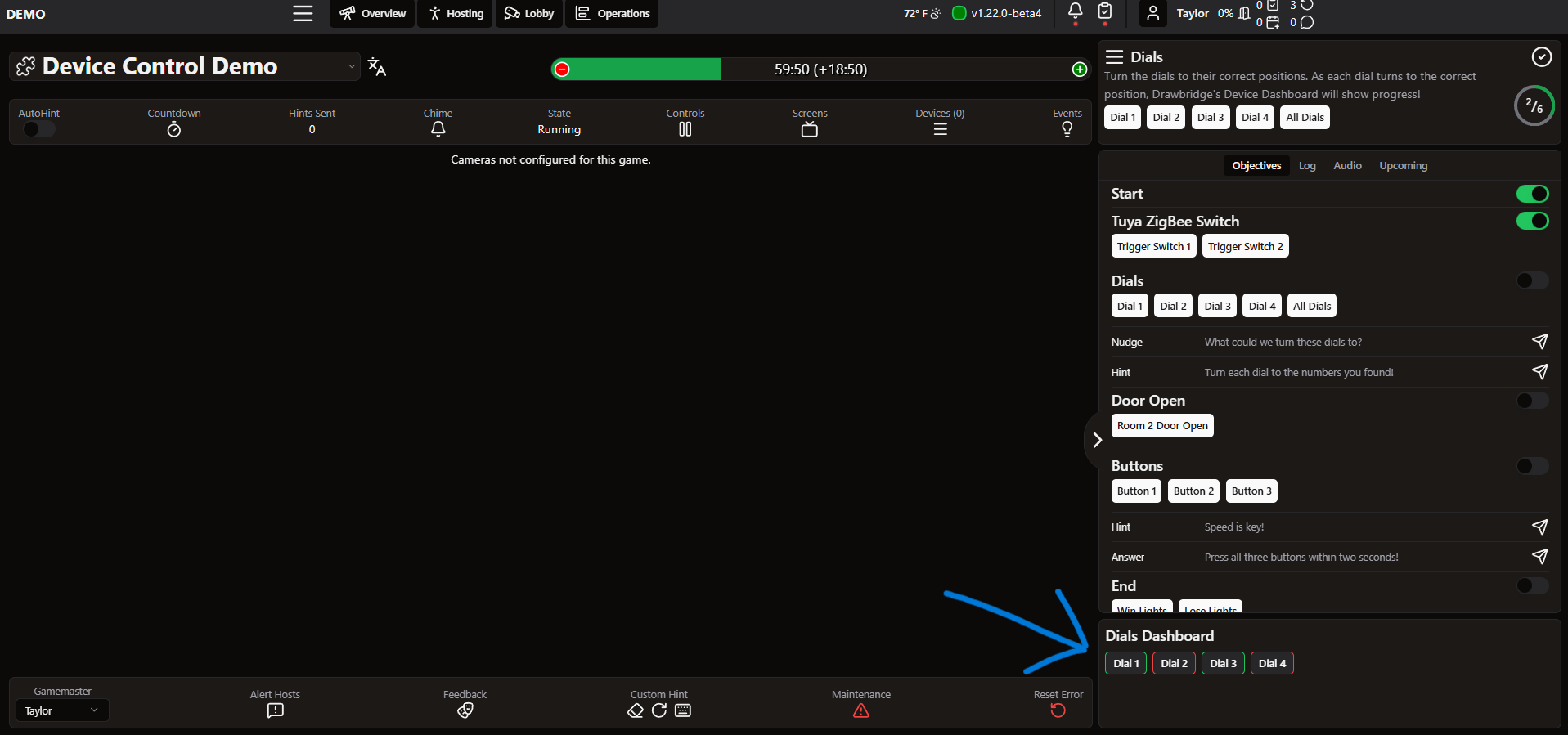
While Gamemastering, Device Dashboards will appear in the bottom-right of the GM page whenever their corresponding objective is active. Devices display their current state with red and green borders—Green is ON and Red is OFF.
Still need help? Share an idea