Game Settings
Make sure stories are fully configured!
Written By Emma Williams
Last updated 4 months ago
Game Icon
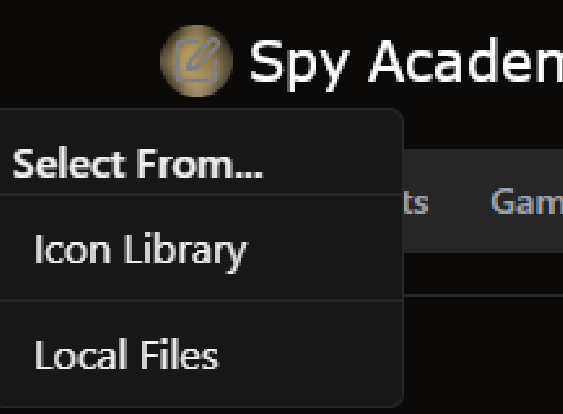
Hover over the puzzle icon (or currently set icon) to choose or create a new image to represent your game. The icon library allows you to select an image and customize the color to match your game. You can also upload an existing file.
Cameras
This is where cameras are added to a game. If you’re using audio through the cameras, make sure the audio box is checked. For info about adding cameras, check here or email support@drawbridgesolutions.com.
Game Mastering
Chimes
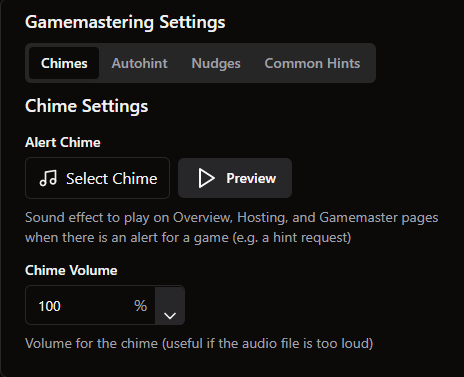
Choose an audio file or select from the chime library the alert sound that will play when this game requests a hint. Preview the sound and then adjust the default volume as necessary.
Autohint
Autohint adds a time limit to hint requests. If a Game Master doesn’t reply within the set time, the highest, unsent hint will be delivered. For venues with GameSense, this is a great function that allows GM’s to watch more games. For venues without GameSense, this can be helpful if a GM needs to take a quick break as the customers still get a timely response.
More info about Autohint and our recommendations here.
Nudges
A configurable reminder for Game Masters about sending extra help to a group.
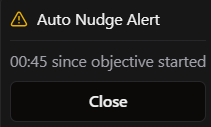
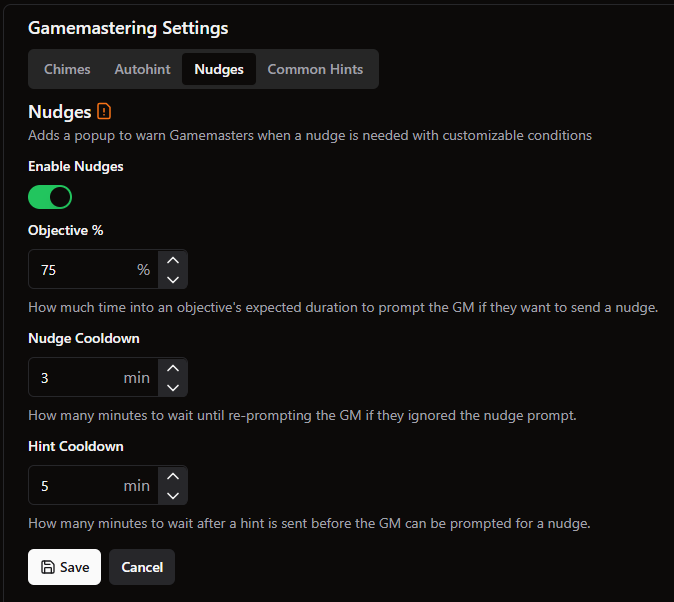
The logic for when a reminder is sent can be configured in 3 ways:
How far into the current puzzle the group is
How long it’s been since a hint was sent
How long it’s been since the GM dismissed a nudge prompt
All 3 sections have default values, but are adjustable if needed.
Setup
Objective % will compare how long a group has spent on an objective to the expected time set in the ahead/behind timer. The expected time can be adjusted in the Objectives tab if needed.
If this is set at 75% and a group is working on a puzzle expected to take 10 minutes, it may recommend a nudge after 7½ minutes.
It will not recommend a nudge at this point if:
There has been a hint sent within the Hint Cooldown threshold (set to 5 minutes below)
A nudge prompt was dismissed within the Nudge Cooldown threshold (set to 3 minutes below)
Common Hints
Common hints are displayed in the custom hint popup on the Game Master page. These hints are specific to a story, but could apply at any point in the game and need to be accessed quickly.
Speakers
This is relevant if using Lifeline - 2 Way Audio in Drawbridge. If your cameras don’t have audio (or it’s poor quality), speakers can be purchased and added into your game. This allows Game Masters to talk into games easily.
Objectives
This tab is extremely helpful in game setup. All objectives or scenes from your game controller are imported here. Selecting a duration for each one will assign it a time value for the ahead/behind timer. You can also enter a quick summary of what players should be doing during this part of the game under Current Task. More detail on the objectives tab can be found here.
There is also an option to assign a camera to an objective. This will make the selected camera the main feed when players are on certain puzzles. Can be overridden by the GM, but will automatically switch active cameras at the start of an objective.
If you’d like to alert hosts or GMs when a group reaches a specific objective, customizable alerts can also be configured here. They can have a name, description, alert sound, and color, all of which get assigned here.
Auto-Tuning Objectives
Turn on this slider to activate autotuning objectives. This means the Ahead/Behind timer will automatically update expected puzzle duration based on the average time spent on that puzzle by groups that escaped in your venue in the last month. The objective timings will be based off of game data from groups that escaped, so it may not fill the full 60 minutes.
Devices
Link devices to specific objectives to add a “device dashboard” that will show when devices are active. Set the value the device should have when it is active in the game and the device dashboard will show red or green if it is on or off. Allows GM’s to see when certain objects are placed correctly and give more accurate hints.
*The device dashboard is intended for users with M3 game control and the devices need to be on/off style, not lock/unlock style
Events
Attach triggers for puzzles to the objective they apply to. Info about setup and config can be found here.
Checklists
Add a pre-game checklist and reset list to your games.
Pre-Game checklists can be configured here. These checklists pop up after the game has been reset and is in the Up Next column on the hosting page. The checklist should include things that need to be double checked before players enter the room. This could be checking locks, adding batteries to a game, etc. To configure a checklist, add a room and then tasks under each room. To get the pregame checklist to appear, make sure the slider for Enable Checklist is turned on.
Reset Checklists are images that appear on a screen inside the room while a reset is being timed in that room. This can be helpful for trainees. They can also be turned on or off using the slider in the left hand corner.
GameSense
Puzzle Completions
This tab is only relevant for locations with active Puzzle Completions. Unless you have gone through GameSense Self Service training, changing settings in here is not recommended at risk of messing up currently deployed detections. More information on GameSense can be found here.
Loss Prevention
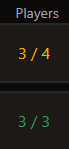
Enabling loss prevention allows you to use the cameras in your games to count players and verify the number of people in the game against the number of players in the booking for that game. The count occurs shortly after the start of the game and appears on the Overview Screen.
Loss Prevention Setup
Flip the slider to turn on Loss Prevention.
You’ll need to assign a specific camera to count players. Ideally, this is a camera that can see the entirety of room one. This is assigned with the “Trigger” button.
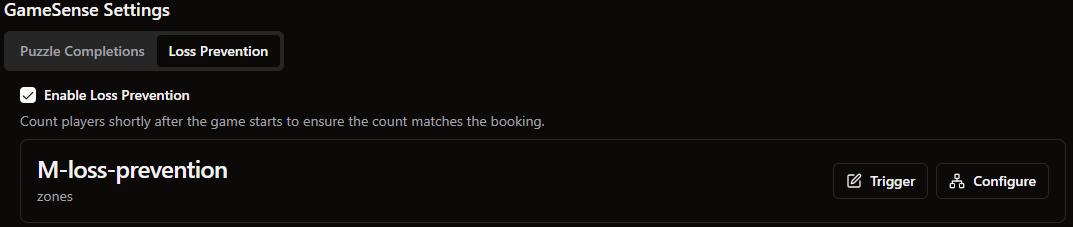
If your game has photos of people on the wall, you may need to draw zones that don’t include these photos but where players will stand. To do this, you will click the “Configure” button.
Once in the “Configure” menu, you’ll upload a photo from the camera. You can upload this from your computer or use the “Collect Data” button on the right hand side to view the camera live and take a screenshot to upload.
Then create a “Zone” which is the area in which players must be standing to be seen. Ideally this box will not include any photos of people, as that may confuse the count. The box must be drawn from top left corner to bottom right corner.
In “Zone Conditions” you can create multiple zones and name them. You can also set a minimum number of people in a zone. In most cases, you will not need to set any conditions.
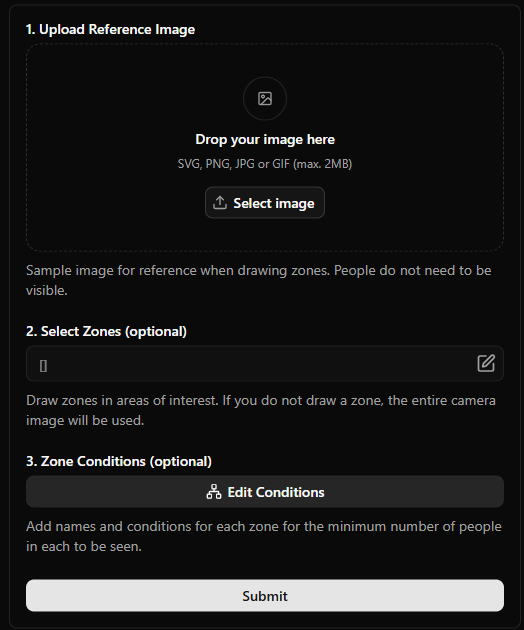
If you’d like to test your zone and make sure it is detecting people, you can hit the “Test Detection” button on the right hand side. This will bring up a live feed of the camera with the zone you drew and a number. Send a staff member in to stand in the box and watch the number adjust!
Loss Prevention History
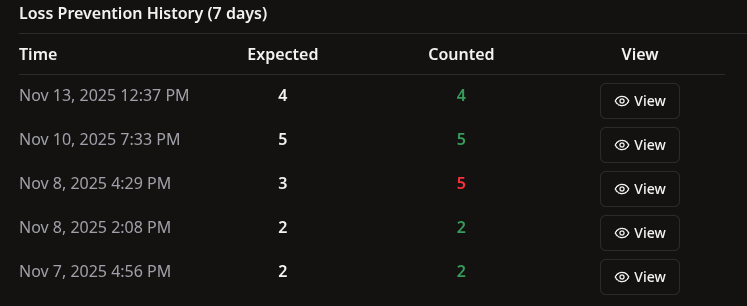
This area will show all history for the last week. You can click on the View button to see a screenshot and the people counted for that game. Photos are only stored for 7 days.
The history may be used to check back over any discrepancies from the last 7 days, or to check if there are blind spots on a camera or a need for a zone to filter out decorations.
Still need help? Share an idea