Objective Triggers
Gamemaster overrides made easy! How to add/remove triggers to Objectives on the Gamemaster screen.
Written By Daniel Gleaves
Last updated 4 months ago
Overview
Drawbridge allows you to attach Objective Triggers to individual objectives, removing the need for Gamemasters to scroll or scan through all the events in a room (see photo).
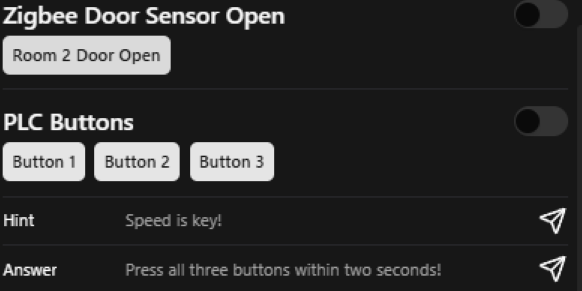
Attaching Triggers to Objectives
Under the “Objective Triggers” tab:
Select the Objective you would like to attach an Objective Trigger to.
Click the “Select event…” dropdown box.
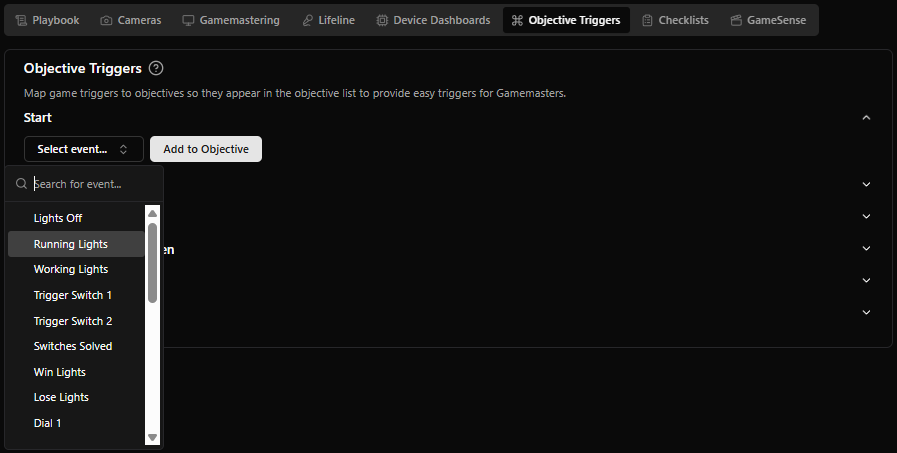
Search for and select the Action(s) that correspond with the selected Objective.
Click “Add to Objective”.
Click “Save” at the bottom of the page.
The Action’s name should now be visible, in grey text, to the right of the “Add to Objective” button.
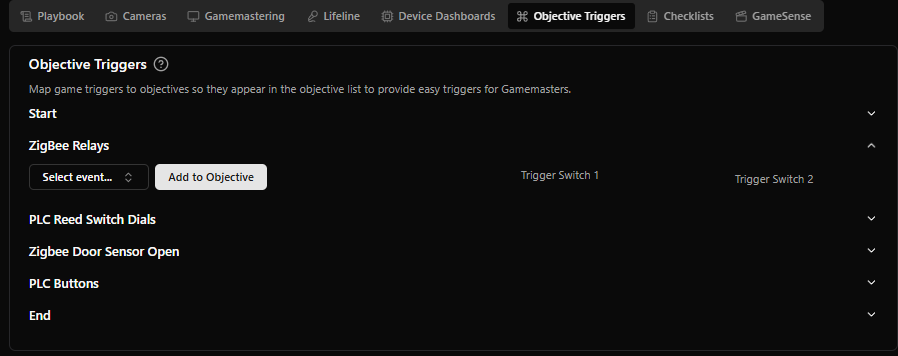
The button you just created can be seen on the Gamemaster screen, directly below the name of the Objective you attached it to!
Removing Triggers from Objectives
Under the “Objective Triggers” tab:
Select the Objective you would like to remove a trigger from.
Click the Action you would like to remove.
Click “Save” at the bottom of the page.
Events that have already been added to an Objective will appear to the right of the “Add to Objective” button in grey text. When you hover your mouse cursor over an Action, a strikethrough line will appear to let you know you’re about to delete it.
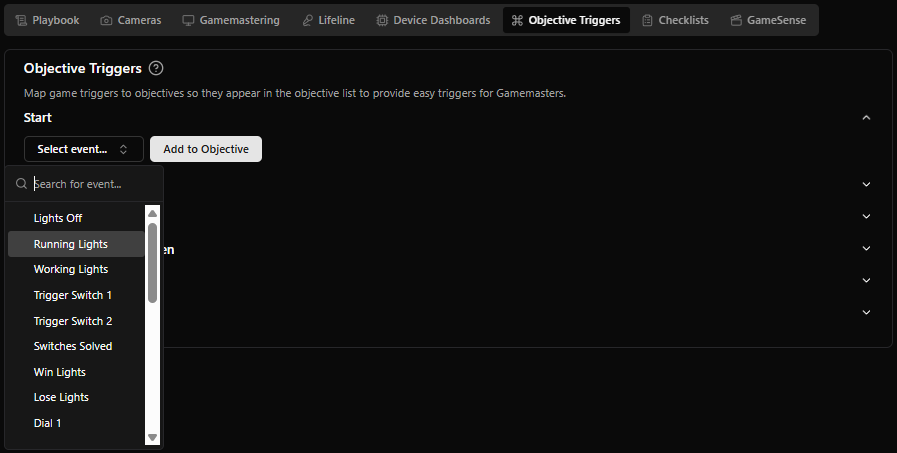
Troubleshooting and FAQs
Missing Mythric Events
Events within an M3 story should automatically appear in Drawbridge after importing the game. If there are any missing, go into your game’s settings within M3 and make sure “Game Master” or “GM Visible” is checked.

Still need help? Share an idea