How to Set Up Automatic Login to Desktop for Windows 11 PC
This article will show you how to set up a Windows 11 PC to automatically login to your desktop on bootup. This will prevent the password dialog from coming up after boot, logging in straight to the desktop environment.
Written By Drawbridge Support
Last updated 7 months ago
Note: Due to the nature of such a setup, there is no password protection on your PC. Ensure the PC is in a secure location before setting up auto login.
Companion Video
Why Do We Need Automatic Login?
In the world of escape rooms, the computers that power countdown displays are commonly embedded inside of display enclosures, walls, ceilings, or other hard to reach places. When opening a room, having to manually turn on such a computer and open the countdown display is time consuming, and can be tedious. This article will show you how to login to your PC automatically to avoid having to enter a password upon boot.
The next article will explain the setup process for a custom script that will launch the countdown display web page automatically when the desktop is loaded. Please view that article after this one in order to fully take advantage of our countdown screen automation solution.
Step 1: Enable Auto Power-On in PC Bios
To ensure your PC will turn on automatically if there is a power outage, Auto Power-On needs to be enabled in your computers bios. This process varies on a per-computer basis, so check with your manufacturer for the exact steps.
For the Beelink Mini S that we recommend, the bios can be accessed by repeatedly pressing the “Delete” key until the main menu page comes up. The full path to the setting from the main menu of the bios is as follows:
Chipset > PCH-IO Configuration > State After G3 > S0 State
From the main menu, you can use the arrow keys, “Enter”, and “Escape” to navigate through the bios.
Use the right arrow key to go to the “Chipset” Page, and then press enter on the “PCH-IO Configuration” heading.
Use the down arrow key to navigate to the “State After G3” heading, and press enter.
Select “S0 State”, and press enter.
Now press the escape key to go to the main page, and navigate to the far top right “Save and Exit” heading and select “Save Changes and Exit”.
Your PC will now reboot, and if you unplug it and plug it back in, it should start to boot automatically (without needing to press the power button.)
Step 2: Edit Windows Registry to Enable Passwordless Login
Open Regedit
Once you are booted into your Windows 11 Desktop, ensure your PC is fully up to date. Next, press the keyboard shortcut “Windows + R” to open the ‘Run’ Dialog box. In the blank space, type regedit as seen below:
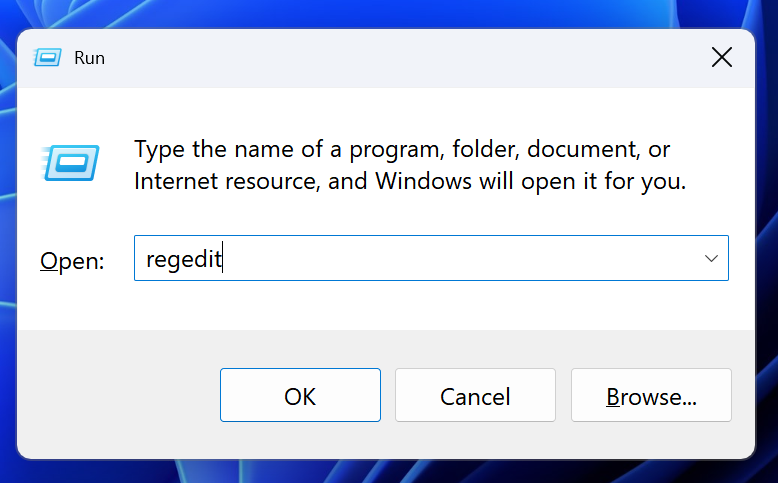
Press enter, and select yes if you get a pop up asking if this app can make changes to your device (Ensure you have administrator privileges to do so).
Disclaimer
Editing the Windows Registry can have serious consequences if done incorrectly. The Registry controls core parts of Windows 11, and making the wrong change may cause system instability, software malfunctions, or prevent Windows from starting properly. Follow these steps carefully, double‑check every value before modifying it, and consider backing up the any important data beforehand.
Enable Passwordless Login
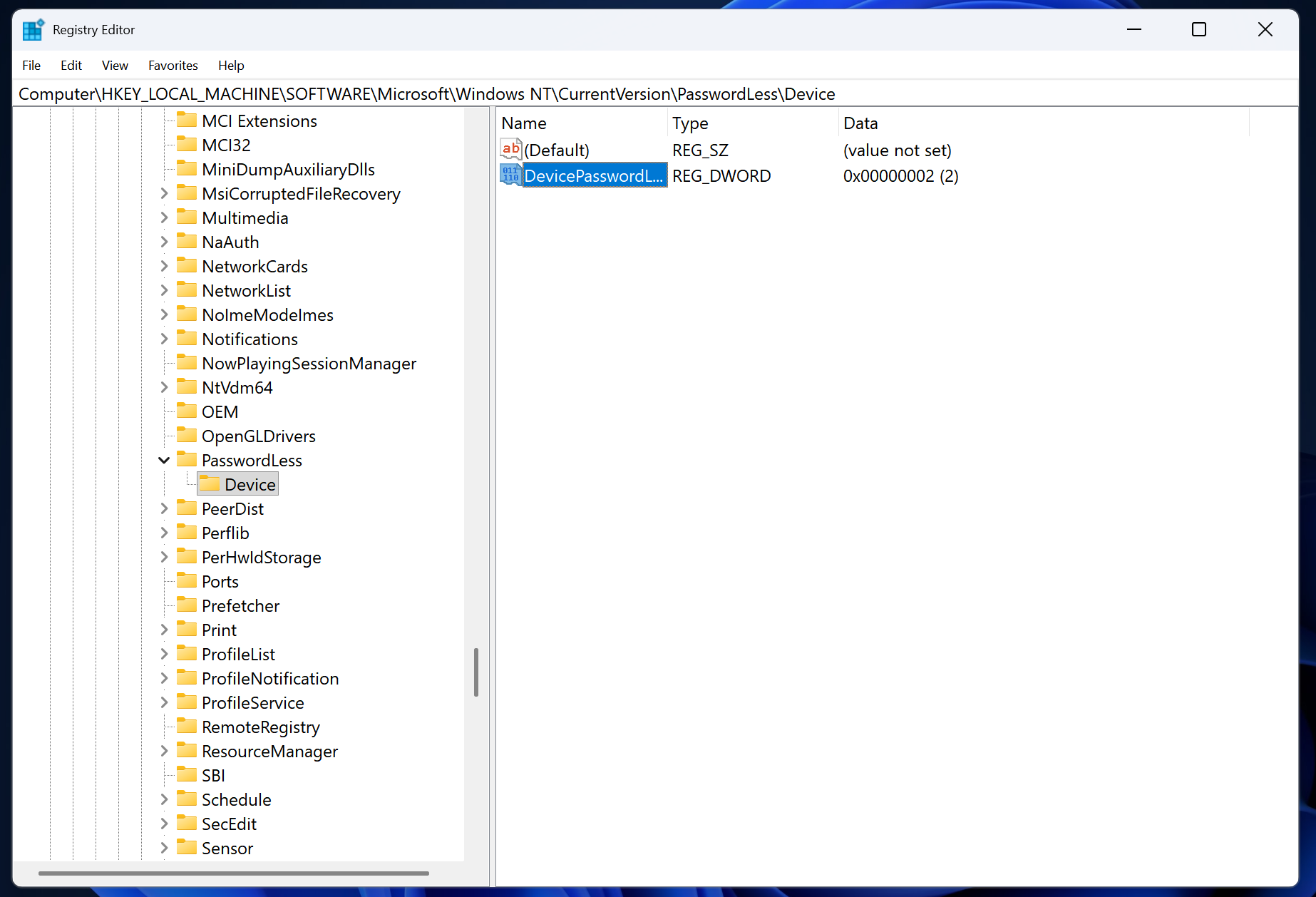
Using the file browser on the left hand side of the application, navigate to the following path: Computer\HKEY_LOCAL_MACHINE\SOFTWARE\Microsoft\WindowsNT\CurrentVersion\PasswordLess\Device
Double click on the DevicePasswordLessBuildVersion field, as seen below:
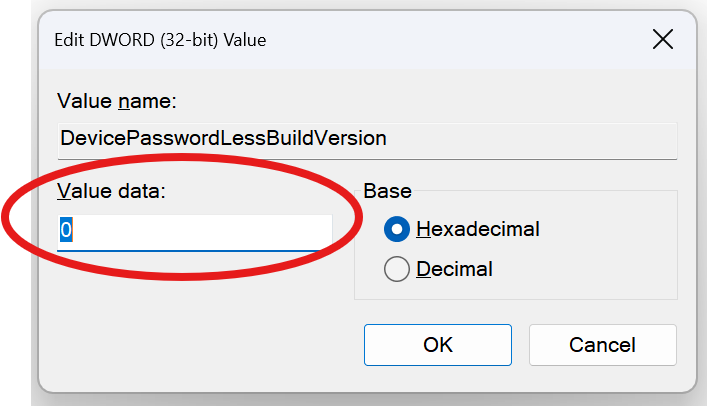
In the resulting Edit DWORD Value pop up, change the “Value data” field from 2 to 0, as seen below. Then click “OK.”
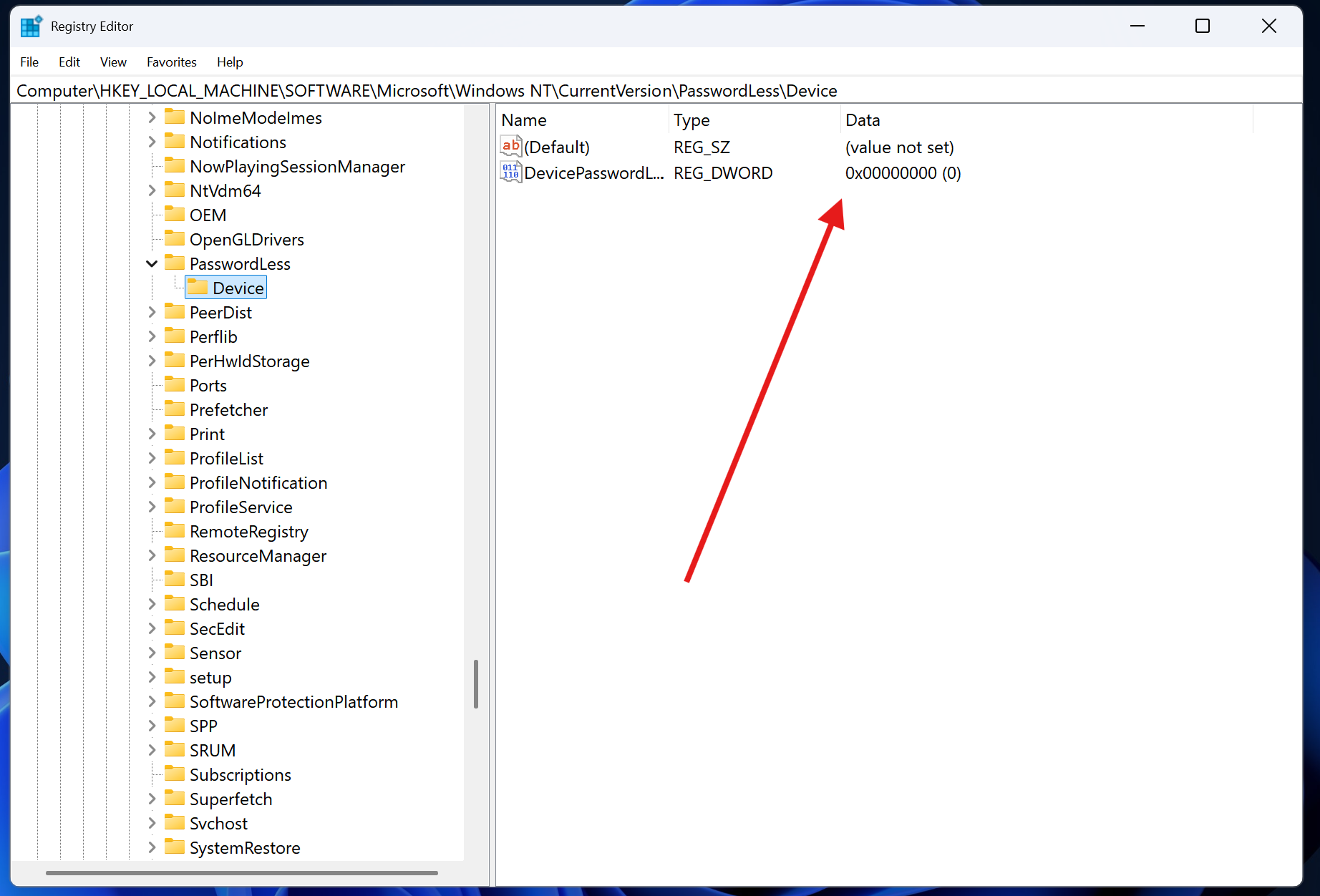
Finally, ensure that your registry entry page looks like the one below, and then close out of the registry editor.
Step 3: Use the netplwiz Dialog to Enable Auto Login
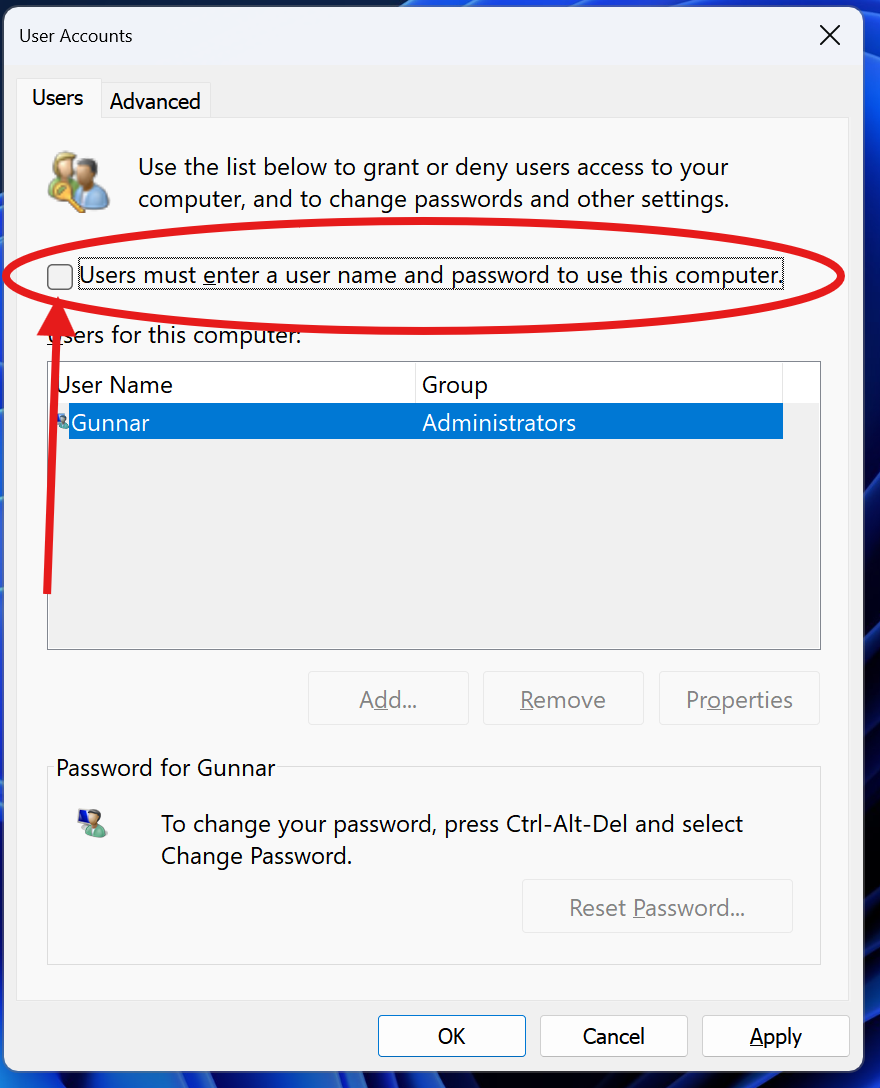
Once again, press the “Windows + R” shortcut on your keyboard to open the ‘Run’ Dialog. In the field, type netplwiz and press enter. In the pop up, uncheck the “Users must enter a user name and password to use this computer.” box, as seen in the image below. Then, press the apply button.
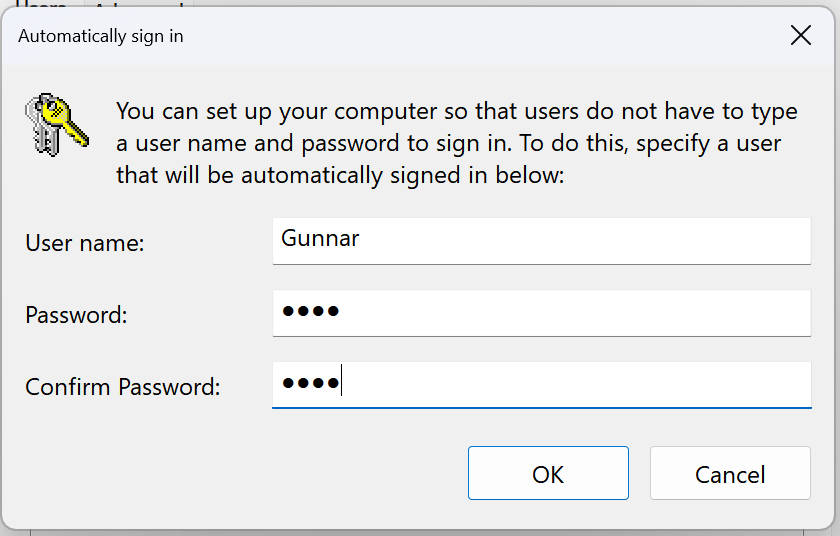
After pressing apply, you will get a login pop-up as seen below. Simply type in the User name and Password of the account you want to automatically log into, and press ok. Then press Ok for the main “User Accounts” dialog as well to close and save it.
Reboot
The last step is to reboot your PC and test your changes. If all goes well, your PC should automatically log into the desktop without prompting for a password. Remember to set your “Screen, sleep, & Hibernate Timeouts” to “Never” in windows settings to prevent your PC from going to sleep and shutting of the display.
Still need help? Share an idea