Employee Settings
A walkthrough of all employee settings and what they impact
Written By Emma Williams
Last updated 3 months ago
Employees
A list of employees. This may be imported from timekeeping, but can be added to and edited here. This should be just the employees first name (with an initial after, if needed). This is the name that will appear when the employee logs in and the name that will be attached to anything they do while signed in. If counting review mentions using Google integration, alternate names or spellings can be entered under the Reviews tab.
If the training status checkbox is selected, the employee will appear as trainable in the training tracker and can be assigned modules. This also means they will be marked untrained if timed resets are not completed.
Training
Add parameters around employee training: modules to complete, how recent resets need to be, and create training quizzes.
Modules
This is where modules for the training tracker are set up. If a training spreadsheet already exists, you can import that to create modules. Attached is an sample sheet to demonstrate formatting. Feel free to use this sheet, but remember to update game names to match your venue.
Training Tracker Outline.xlsx
5.9 KB• Spreadsheet
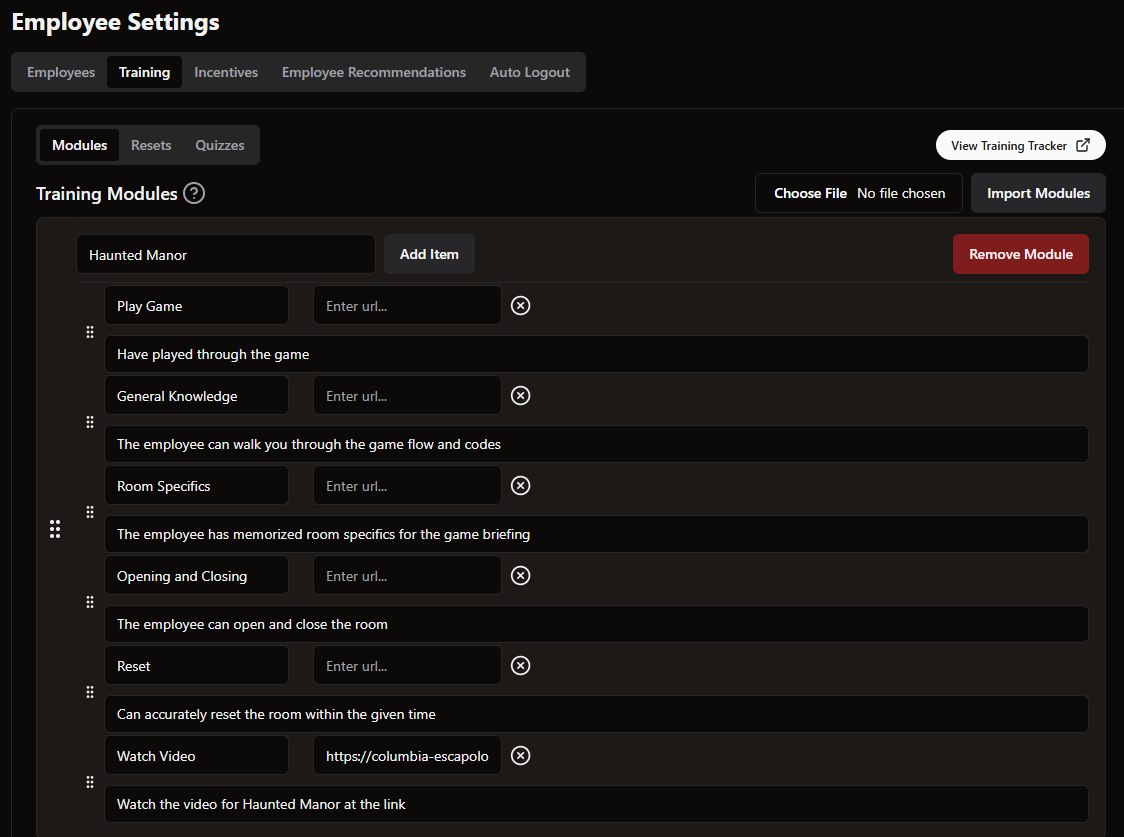
If starting from scratch, create a module. This name is what will display in the training tracker. Once the module is created, add items within the module. These are what will be checked off as training progresses. Items and modules can be reordered if needed. Add descriptions or external URLs to items within modules.
To assign a module, check off items, and see training progress, use the Training Tracker in the 3 bar menu.
Resets
Set the historical number of weeks in which a timed reset needs to have been completed for an employee to be considered trained.
Quizzes
Create quizzes for employees to take.
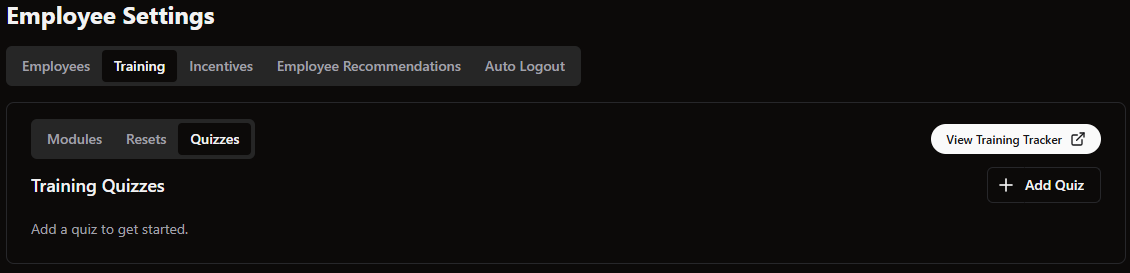
Add a quiz, assign it to a module and give it a description. Then create questions.
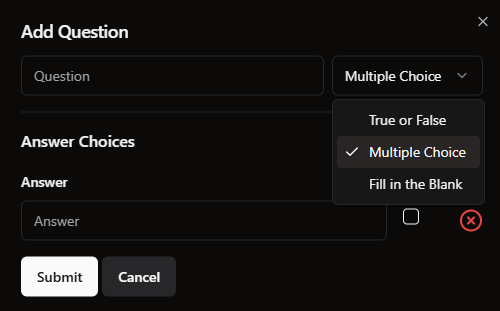
Questions can be True/False, Multiple Choice, or Fill in the Blank. Create answer choices and select the correct one. From here you can launch the Training Tracker
Using for Employees
Access the Training Tracker from the Operations page to check off basic items or the 3 Bar Menu for full functionality and quizzes.
If accessed from the 3 Bar Menu, you can view quizzes. Click on the title of the module or the employees name to find details about the modules.
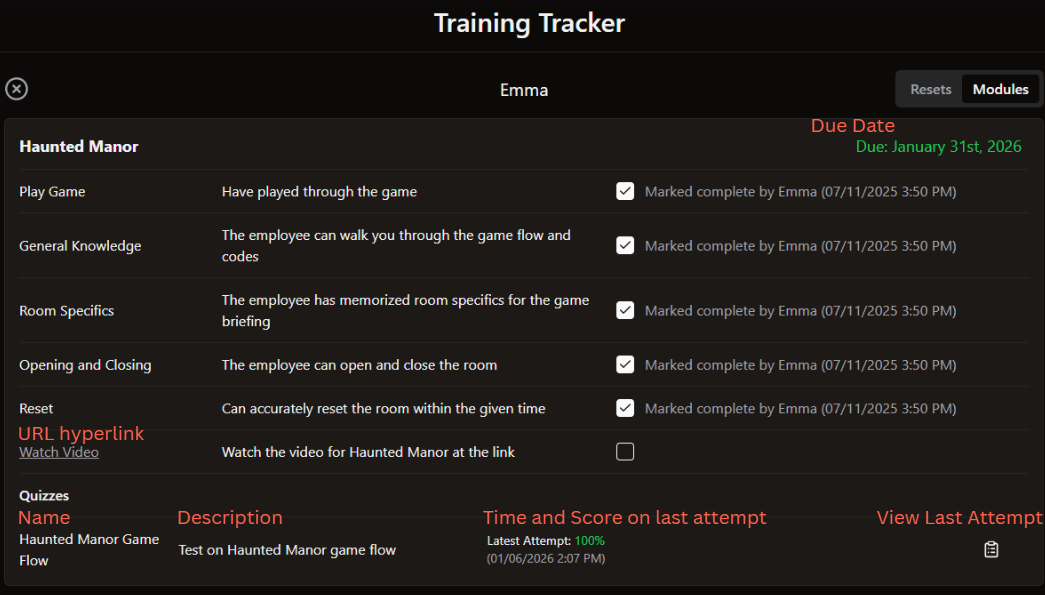
Clicking on the name of the quiz to launch it and take it. Hit submit at the bottom and see your score immediately. If attempted multiple times, you can view previous attempts. You can also attempt another time using the Try Again button at the bottom.
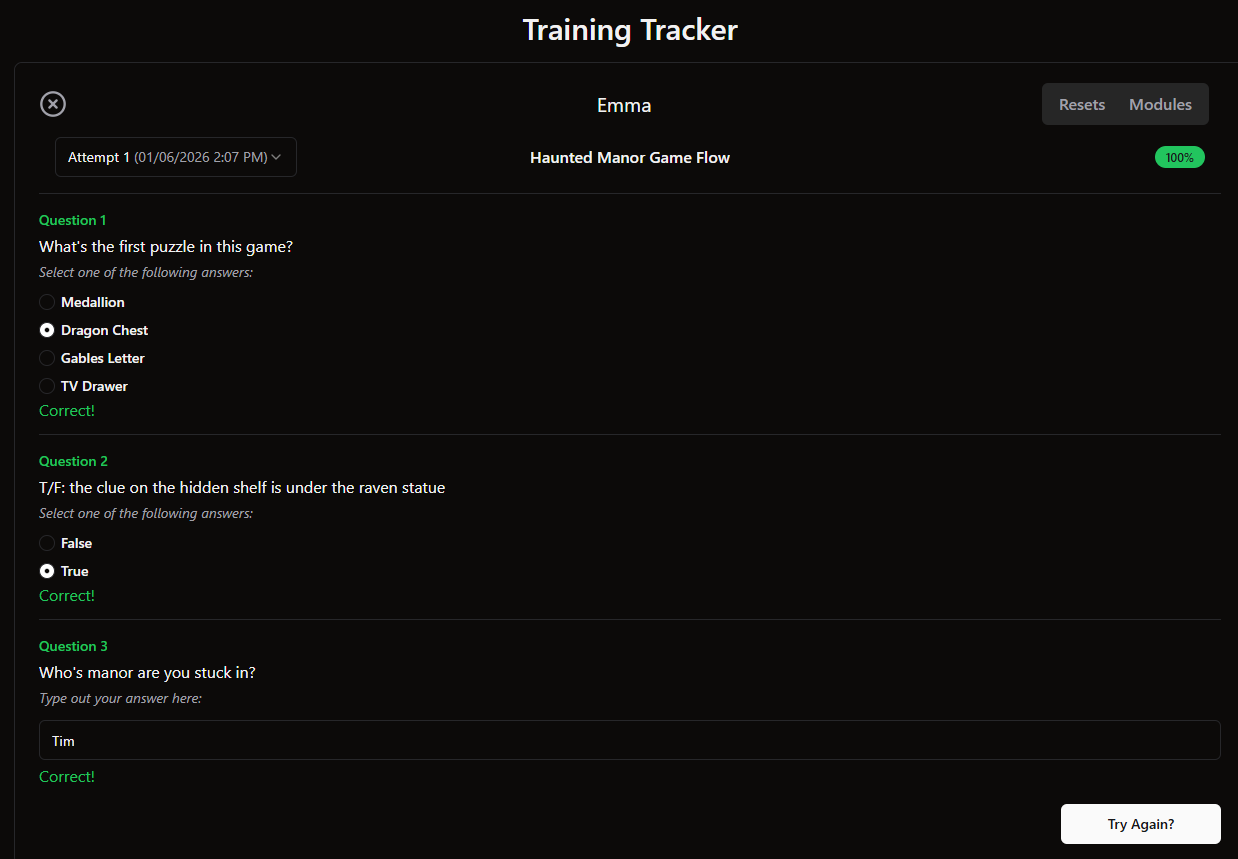
Once completed, the attempt and responses will also be saved on the main Module page of the Training Tracker.
Incentives
The incentives tab adds context to reporting. Assign a value to review or rebooking bonuses and average cost of employee to receive more information in reports.
Target Labor Hours per Game is a very important metric. The easiest cost to control is staffing. By creating a target, managers have a baseline for how many staff should be onsite depending on the number of games. This number appears as a target in the current or future hours/game tab on the overview screen. We recommend 1.2-1.5 as a starting value. This means 1 staff member working per game being run with an additional person for backup if needed. This number can be adjusted as efficiency increases.
Staffing Targets
Similar to staffing hours per game, this table will assist in predicting how many staff are needed per hour depending on how many games are scheduled. Input the number of staff needed to run each number of games. Add columns until you’ve reached the number of games in your venue.
Employee Recommendations
Add a link to a list of local places recommended by your staff. This will appear on the hosting page and bring up a QR code for customers to scan. Not critical to operations, but a nice touch if customers are curious about what else there is to do in the area and want local opinions. Here’s a peek at ours if you’re ever in Columbia, South Carolina. It’s a shared list on google maps so it’s viewable to anyone who has the link.
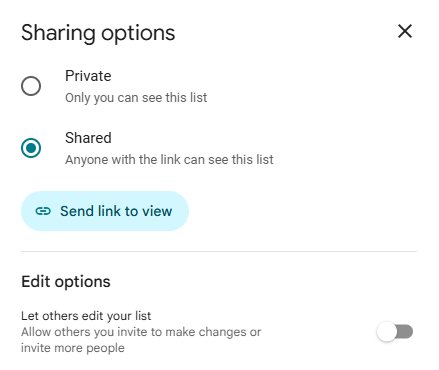
To create a shared list on Google Maps:
Create a new list of saved places
Click the 3 dots and find Sharing Options
Select Shared (anyone with the link can see this list)
Ensure the “Let others edit your list” slider is off so that your customers aren’t changing your list!
That’s all! I would recommend doing this on a Google Account that is logged in on a computer in your venue so staff can add places to the list. You could also ask for a list and manually enter locations.
Don’t forget to add notes about each place to tell others why it’s on your list! We did this mostly by recommending dishes at restaurants or having staff enter a short reason why they would recommend this place.
Once your list is complete, just click back into the sharing menu from before and copy the viewing link to put into Drawbridge.
Auto Logout
If you check the box, you can select a number of minutes before employees will be signed out of Drawbridge. This may help employees when switching iPads so they aren’t logging actions under the wrong name.
Still need help? Share an idea