Report Settings
A guide to setting up shift, daily, weekly, and monthly email reports!
Written By Emma Williams
Last updated 14 days ago
Navigate to Settings → Reports Settings
Shift
Shift reports are configurable reports intended to be sent by managers at the end of their shift. They should include a summary and other relevant information for other managers or owners. Exactly what is in these reports can be configured here.
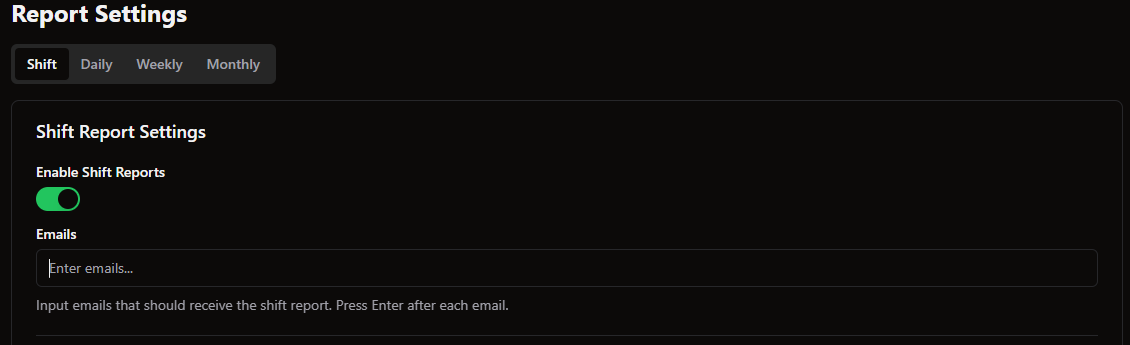
Flip the slider to enable Shift Reports. Enter an email and hit enter after each one. Hit save after making changes.
Creating an Outline for Your Report
Flip the toggle from Opening to Closing to configure each one individually. Flip the slider next to each field to enable it for your report.
You can also open each field to see a preview of what it looks like.
Fields:
Previous Lead* - This field will automatically populate with the name of whoever sent the last shift report.
Issues Opening - Managers will enter a list of issues or errors found when opening the venue.
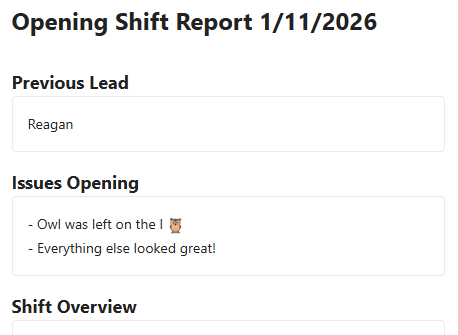
Shift Overview - Managers will enter comments about how the shift went in general
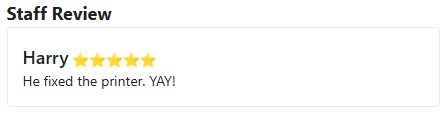
Staff Review - This field allows managers to select an employee and give them a star rating and comments on their performance. For privacy, this field will only open right before the report is sent and cannot be saved as part of a draft.
Customer Interactions - Managers can enter comments about customers during their shift (cancelled games, odd transactions, lost belongings, etc)
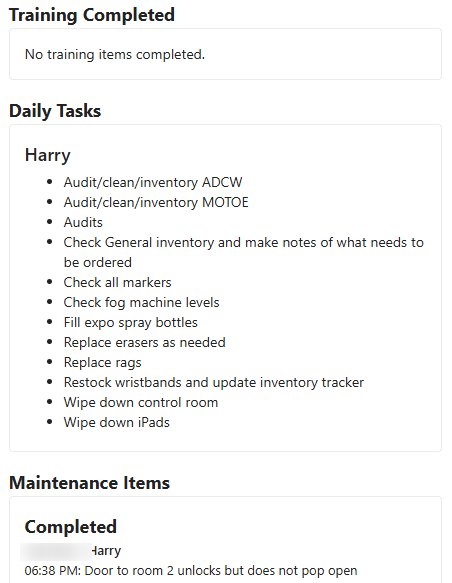
Handyman* - Will autofill with any Handyman Tasks that were completed or created during this shift.
Training* - Will autofill with any Training Items that were completed by employees during this shift.
Daily Tasks* - Will autofill with any Daily Tasks that were completed by employees during this shift.
Revenue* - Will autofill total revenue for this shift.
Register - Allows managers to state how much cash is in the register and if it is unbalanced.
Games Played* - Will autofill with the number of games played during this shift.
Other Notes - Managers can add any remaining notes here.
Custom Field - Add a custom section to the report. Can be a text field, an employee select field, or a star rating. You can create multiple custom fields, but they are specific to opening or closing reports. If you’d like to add the same custom field to both, you’ll need to create it twice.
* indicates a field that will autofill based on venue data
Any fields that calculate data “for this shift” are calculating the amount since the last shift report was sent. For daily totals, refer to Daily Reports.
Daily Ops Log
Flip the slider to enable Daily Ops Log Reports. Enter an email and hit enter after each one. Hit save after making changes. Here’s a walkthrough of a complete Daily Ops Report.
Missing "Staffing % of Revenue"? Here's the Fix
Why it matters: This metric compares labor cost to revenue, but it can only calculate labor cost if each employee has an hourly cost on file. No cost data = no metric (not a zero, just absent).
How to fix it:
Settings → Employee Settings → Incentives
Enter Average Cost per Hour for every active employee
Save
Notes:
Only affects reports going forward — past reports won't retroactively populate
Partial entries = inaccurate metric, not just a missing one, so make sure all employees are covered
Update the value whenever pay changes
Still not showing? Check that your date range only includes completed/scored sessions, confirm your plan tier supports this metric (Settings → Account → Plan), and try re-running the report. If it's still missing, contact Support with your venue name and the affected date range.
Creating an Outline for Your Report
Flip the slider next to each field to enable it for your report. Use Select All or Clear All to turn every field on or off.
You can also open each field to see a preview of what it looks like.
All of these fields are automatically filled and these emails will send every morning at 7:30 local time with data from the previous day.
Morning Briefing
Flip the slider to enable Morning Briefing Reports. Enter an email and hit enter after each one. Hit save after making changes. Here’s a walkthrough of the Morning Briefing report.
Creating an Outline for Your Report
Flip the slider next to each field to enable it for your report. Use Select All or Clear All to turn every field on or off.
You can also open each field to see a preview of what it looks like.
All of these fields are automatically filled and these emails will send every morning at 7:30 local time with data from the previous day.
Weekly
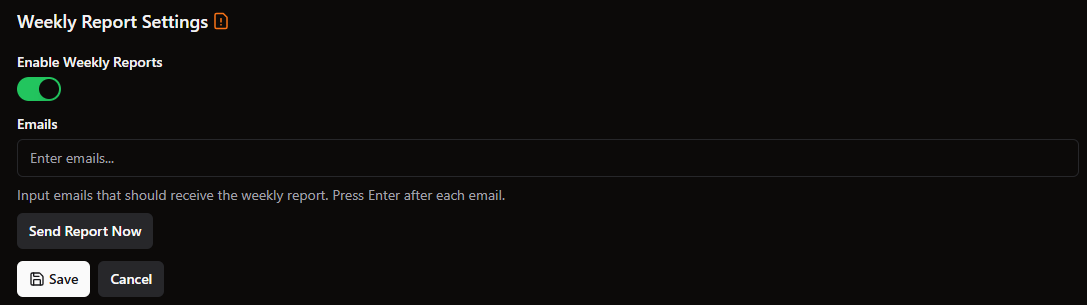
Flip the slider to enable Weekly Reports. Enter an email and hit enter after each one. Hit save after making changes. Here’s a walkthrough of the Weekly Report.
Monthly
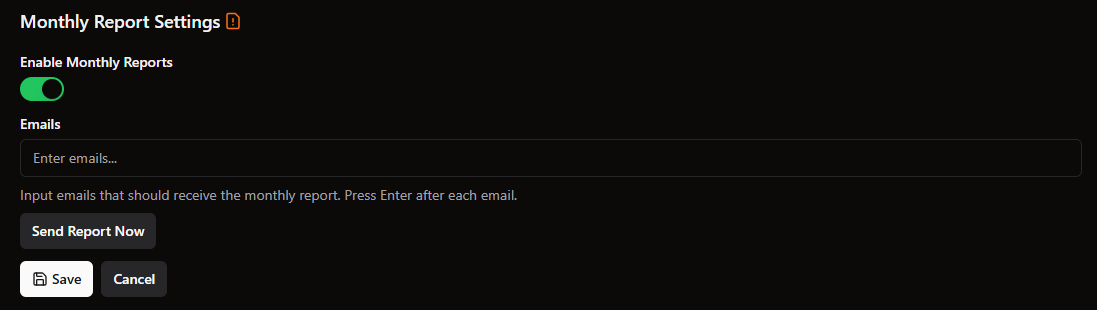
Flip the slider to enable Monthly Reports. Enter an email and hit enter after each one. Hit save after making changes. Here’s a walkthrough of the Monthly Report.
Discord
If you’d like to receive Discord messages when:
Bookings are created (or just rebookings!)
Inventory dips below the minimum quantity
Maintenance issues are created
Google reviews come in
Shift reports are sent
Staffing Reports
You can now link an existing Discord channel to Drawbridge to receive alert messages for all of the above.
To configure this, navigate to Settings → Reports Settings → Discord.
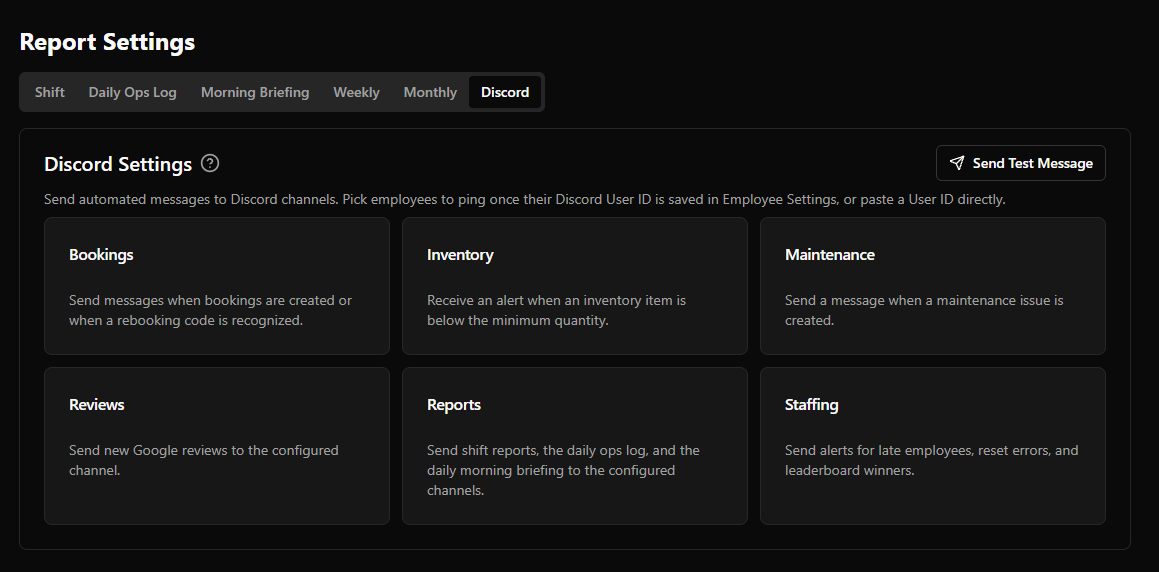
Click on a category and enable the types of messages you would like to receive. You’ll need to add a webhook link into Drawbridge for whatever channel you’d like to send these messages to.
Find the channel name in Discord and open the Channel settings.
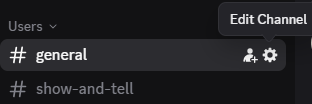
In channel settings, navigate to Integrations and find Webhooks. Create a new webhook for this channel and copy the URL. You don’t need to set a name for the webhook, Drawbridge will do this automatically once it sends a message.
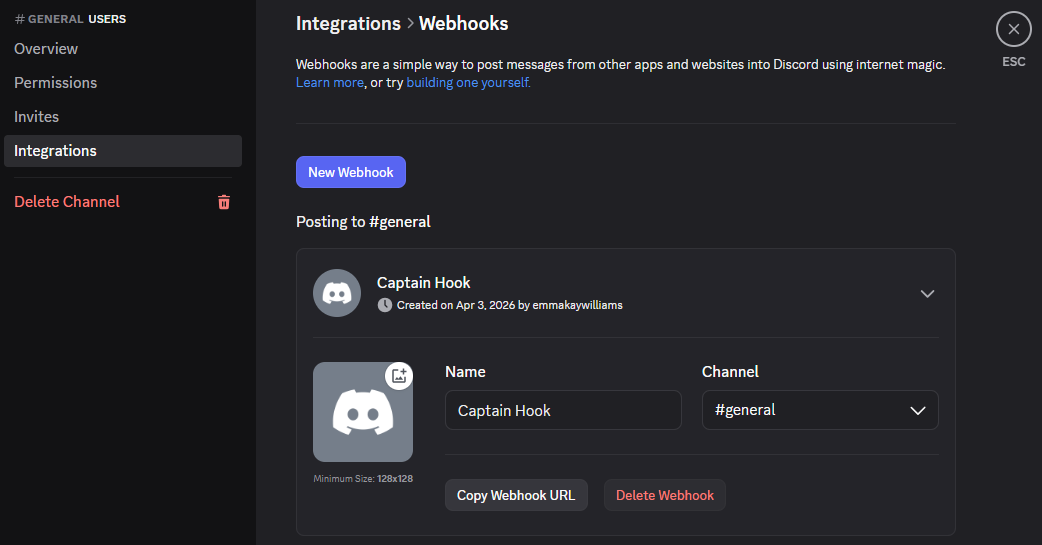
Take this webhook URL and paste it into Drawbridge. If you want multiple types of notifications to send to the same channel, you can paste this webhook URL into multiple notification types.
If you want to send notifications to different Discord channels, you’ll need to generate a webhook URL for each channel.
Once the integration is complete, you should receive a Discord message confirmation.

Pinging Users
You can also configure specific types of messages to ping specific users in your Discord. Drawbridge uses the Discord User ID to ping. Follow these steps to find a user’s ID:
Enable Developer Mode
In Discord, click on the cog icon beside your profile
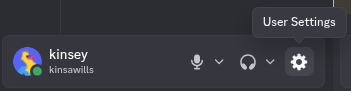
Scroll down to the Developer tab
Enable Developer Mode
In your server, find the user you would like to get the ID for
Right click the user’s name and select Copy User ID
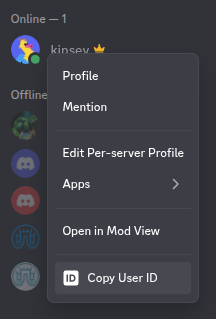
Paste that User ID into Drawbridge and press Enter
You can add as many Users to the ping list as you need!
Example Messages
Different alerts are sent by different Drawbridge Dan apps. They will be labeled as Reports, Bookings, Reviews, Maintenance, or Inventory depending on what type of message is sent.
Shift Report Messages
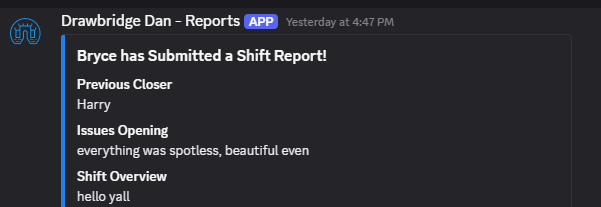
Shift report messages look pretty similar to the emailed shift reports, this is just an alternate delivery method.
Booking Alerts
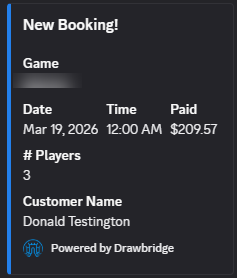
Booking Alerts list the game, date, time, and number of players. It will also have the name of the customer and the amount they’ve paid. If a discount code was used, that will also be displayed.
Review Alerts
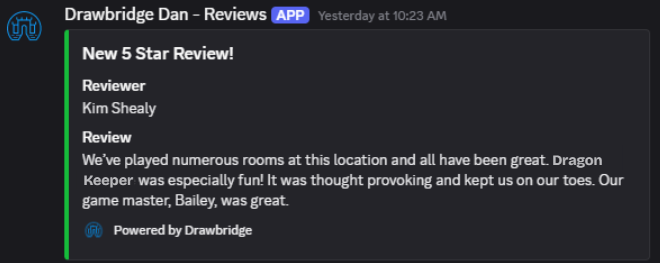
Review Alerts come in as Google reviews are made. The message will say how many stars the rating was and the color on the side of the message will change as well. 5 Star Reviews have a green bar.
The message will have the name of the reviewer and the contents of the review.
Inventory Alerts
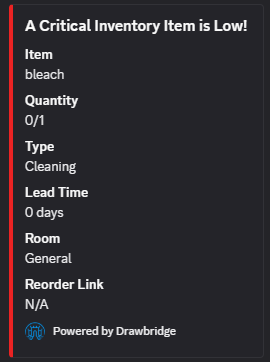
Inventory Alerts are also color coded. Red messages mean an item marked as critical to operations is running low. Yellow messages mean a normal item is running low. The message will name the item, the current quantity, what type of item, lead time, what room it is for, and a reorder link if the item has one.
Maintenance Alerts
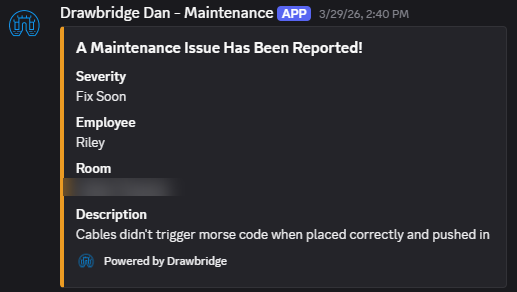
Maintenance Alerts come in when items are created. They are color coded based on severity level. A different message will send if the item was marked as a safety issue. The message contains the severity level, who it was logged by, for what room, and the description.
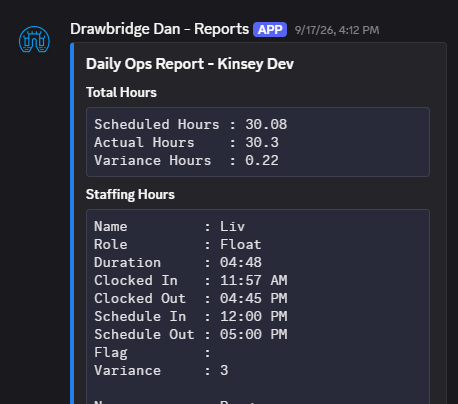
Report Alerts
Send shift reports, the daily ops, and the daily morning briefing to the configured channels in Discord
Staff Alerts
Send alerts for late employees, reset errors, and leaderboard winners in Discord.
Still need help? Share an idea