Creating Playbook Games
How to create original Playbook Games in Drawbridge
Written By Emma Williams
Last updated 3 months ago
Playbooks are intended for Drawbridge users without a pre-existing game control software. They allow you to create a game and use hints and objectives to track player progress.
Game Details
Navigate to the settings page and look for “Create Playbook” beneath the "Games” header.
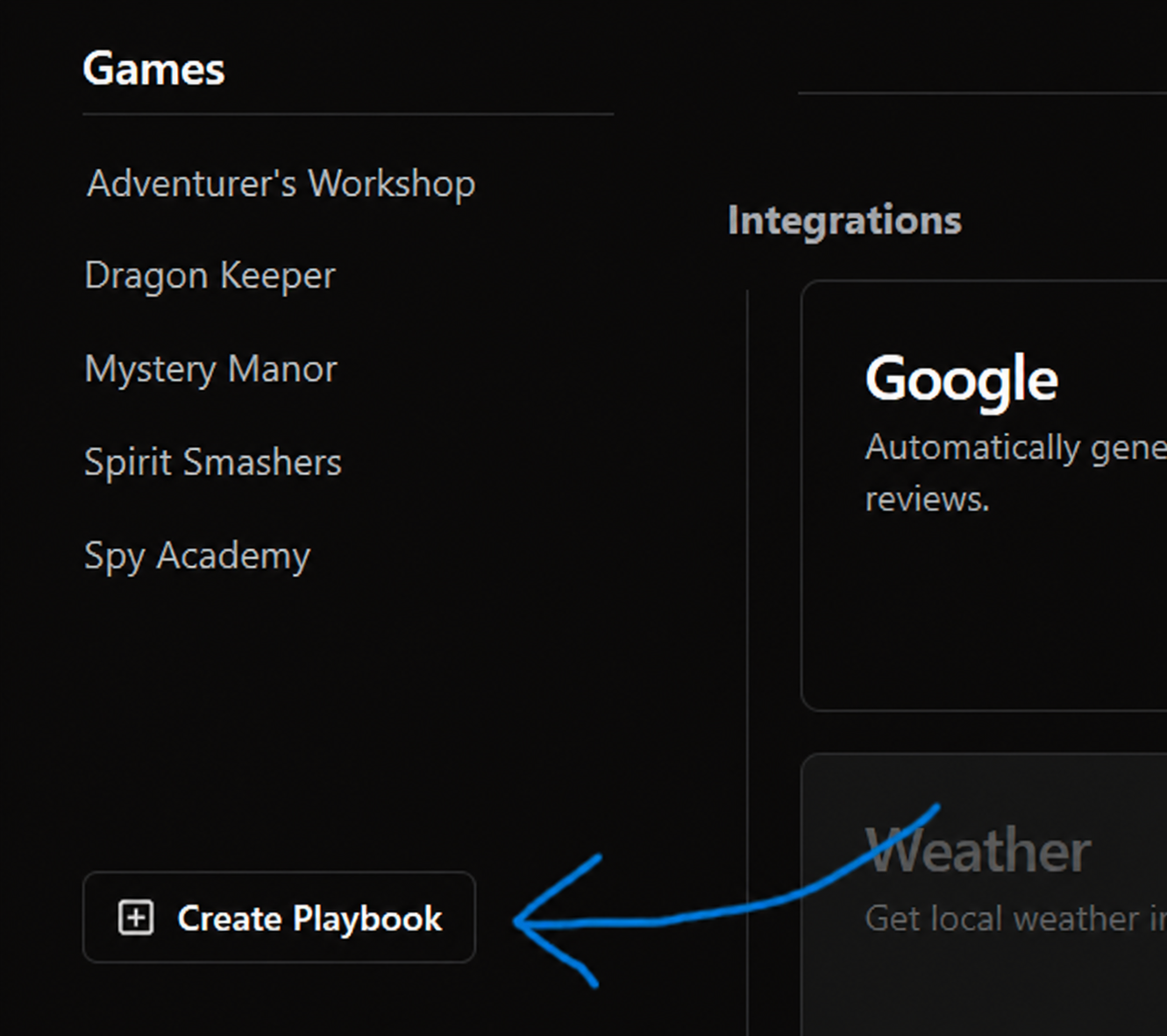
Click the “Create Playbook” button. You’ll be prompted to name the new Playbook and set a duration for the game.
60-minute game = 3,600 seconds.
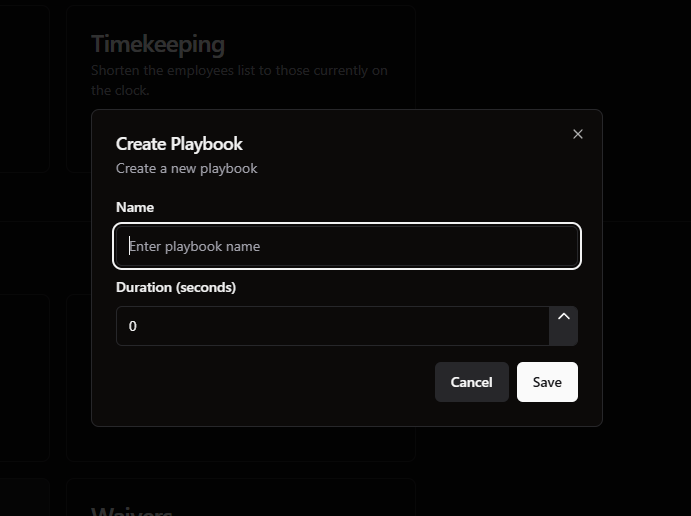
Click “Save” and your new Playbook has been created! You may have to reload the page and navigate to your new Playbook’s settings via the “Games” section of the settings’ sidebar.
Click on your new Playbook to open the settings!
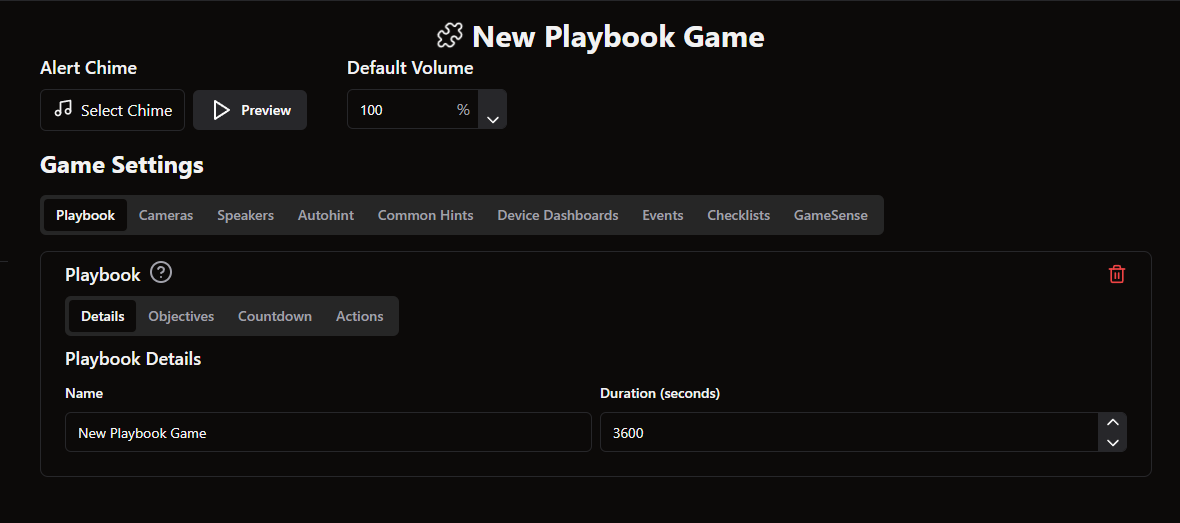
Game Objectives
Under the Objectives tab, you can create Objectives for your game. These are the puzzles/tasks players must complete as they progress through your game.
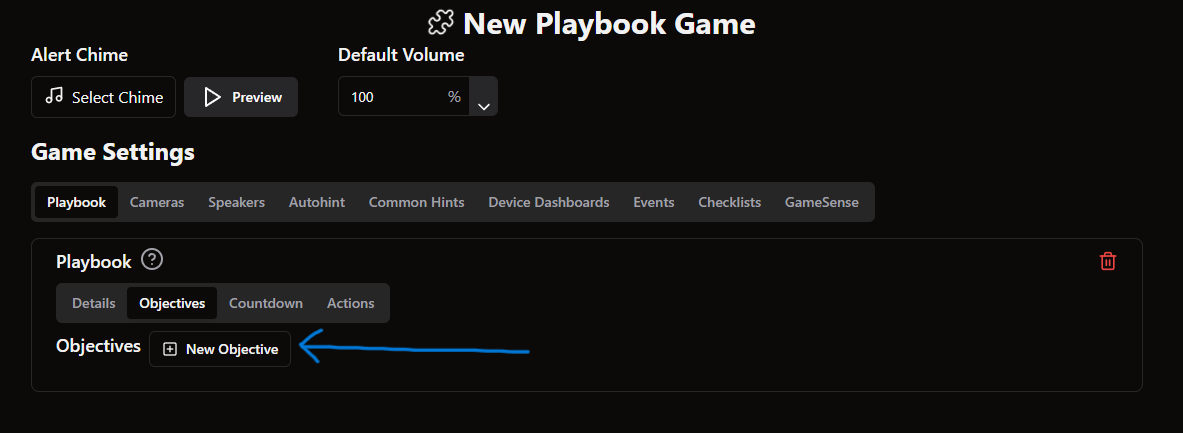
Click the “New Objective” button to create a new Objective.
Each Objective will have a Name, expected Duration, Primary Camera, and Task description. These items enable the Ahead/Behind Timer, Current Task, and Automatic Camera Switching on the Gamemaster page.
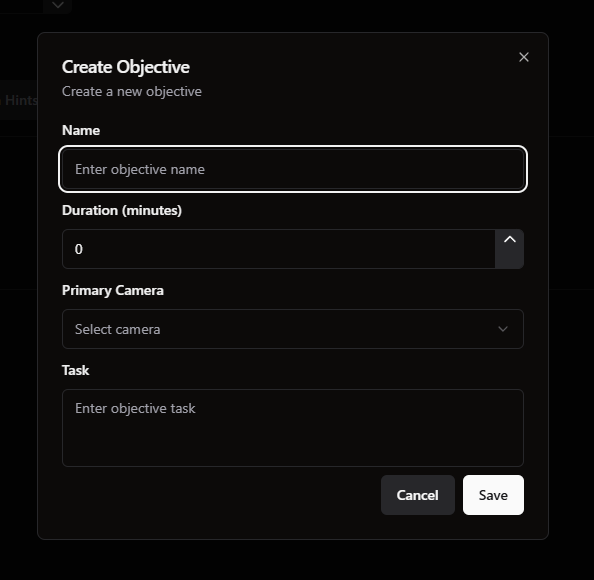
Once you Save your new Objective, you’ll be able to edit the current Objective further.
You can also configure alerts for Gamemasters or Hosts based on when players reach an Objective.
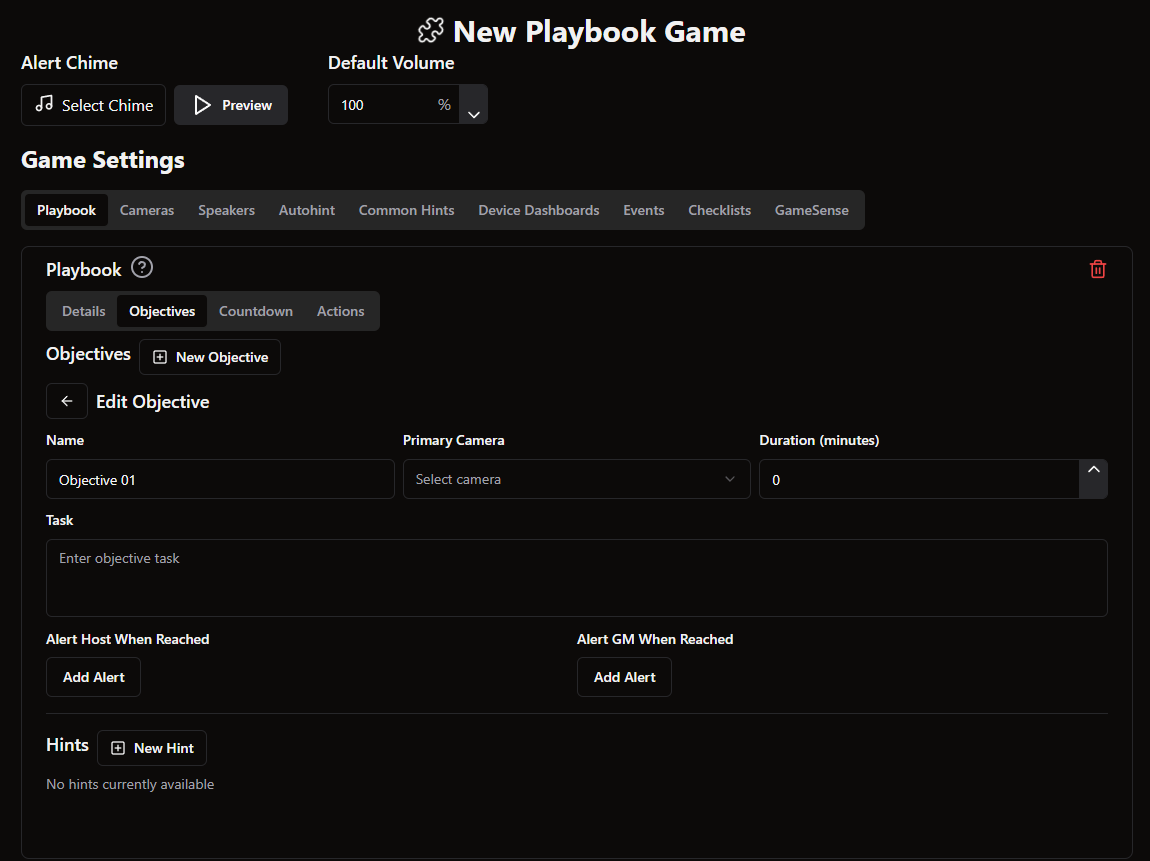
Once Objectives are created, they can be reordered to match the flow of your game.
Make sure expected Durations for all Objectives add up to 55-60 minutes (if your game is 1 Hour long).
Hints
Once objectives are created, clicking on an objective will allow you to create hints for that puzzle. The “New Hint” button toward the bottom of the page allows you to do so.
Each hint can be named and consist of text, audio, or an image.
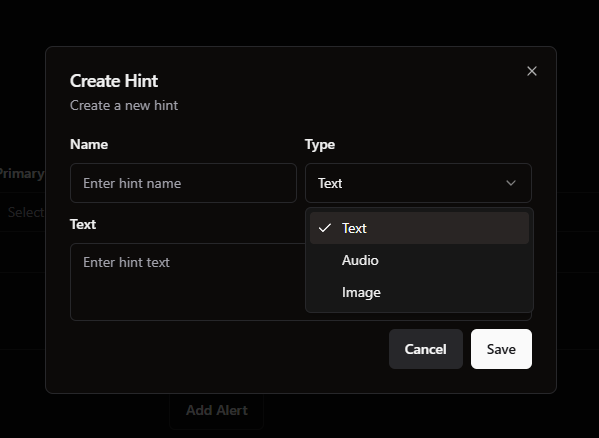
Once created, hints can be arranged in any order. We suggest putting the most vague hint first and the most specific hint last. This is to maximize the efficiency of the AutoHint feature.
Game Countdown Screen
This is where you can configure what the briefing and timer screen look like in the game while players are in the room.
Background Images/Videos
A ‘running background’ image or video will display while the timer is ticking. You can add the timer to the top of the file you upload if needed. You can also loop a video if it doesn’t last as long as the game and sync the countdown timer on the Game Master page to the timer on the video.
You can also upload a rules video and a briefing video that play before the time starts and a success and failure video to play at the end of the game. Adjust volume here per video if a video you’ve uploaded has sound.
Background Audio
If you uploaded an image or the video you uploaded doesn’t have sound, running audio will play in the room while the timer is ticking. You can loop the audio here if it is not as long as your game.
Success or Failure audio will play depending on the outcome of the game. You will not need to upload this if your Success/Failure videos have sound.
End audio will play after a game has completed the epilogue, but before it is reset to the Idle state.
Hint Alert
You can upload a sound that will play in the room when a hint is sent to the timer screen. This is different than the “Alert Chime” at the top of the screen, which is the sound the Game Master will hear when a hint is requested.
Devices
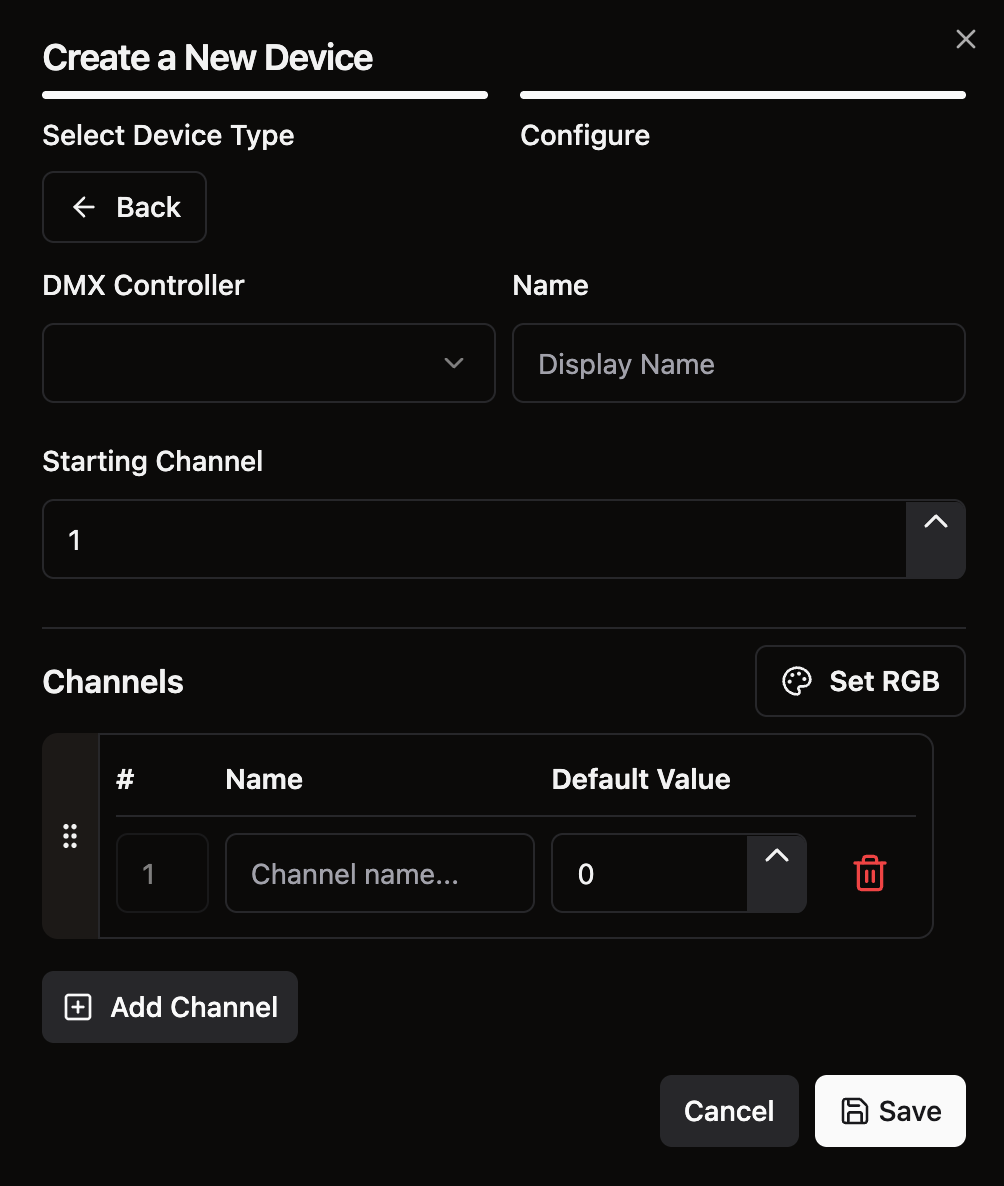
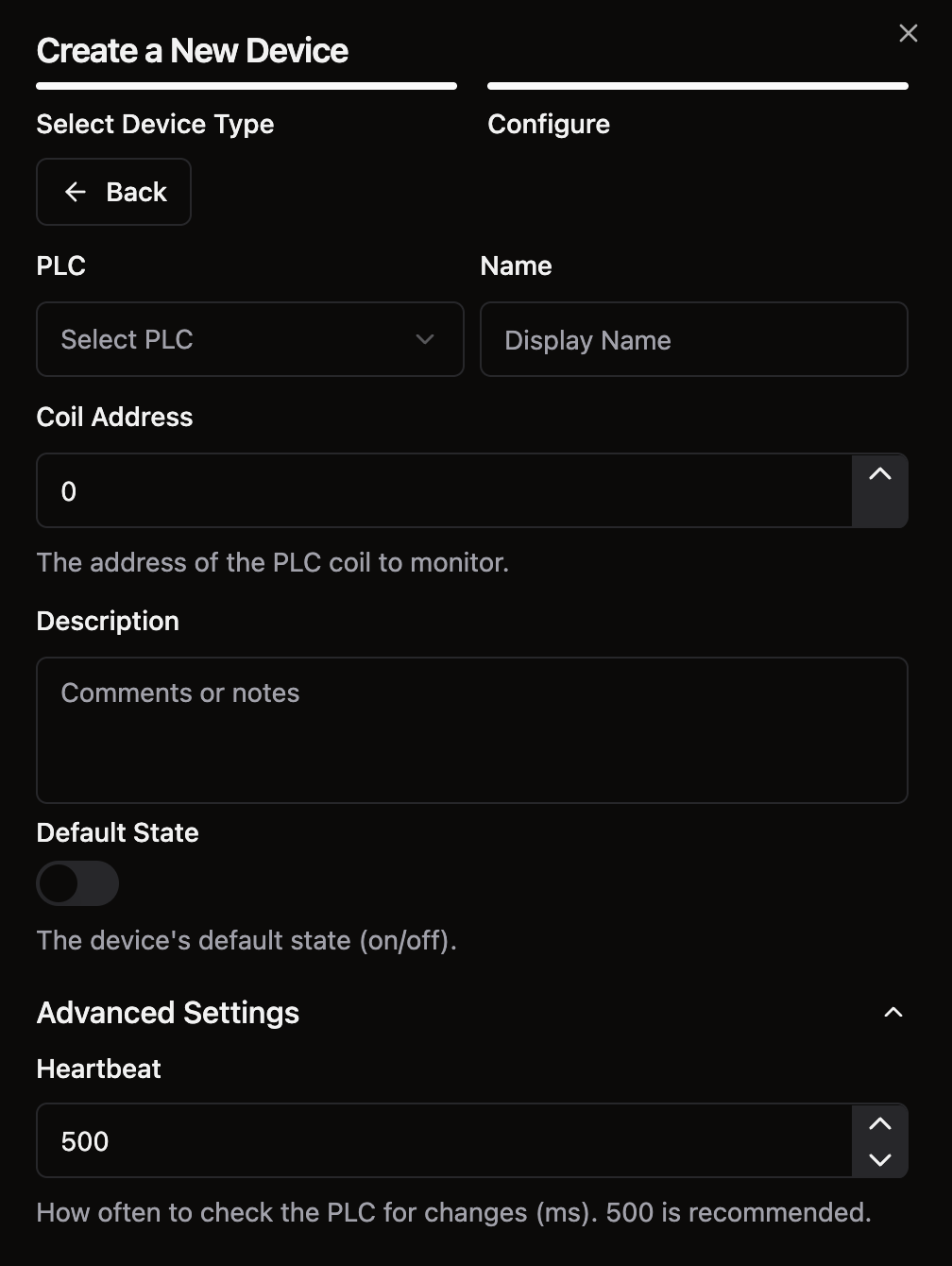
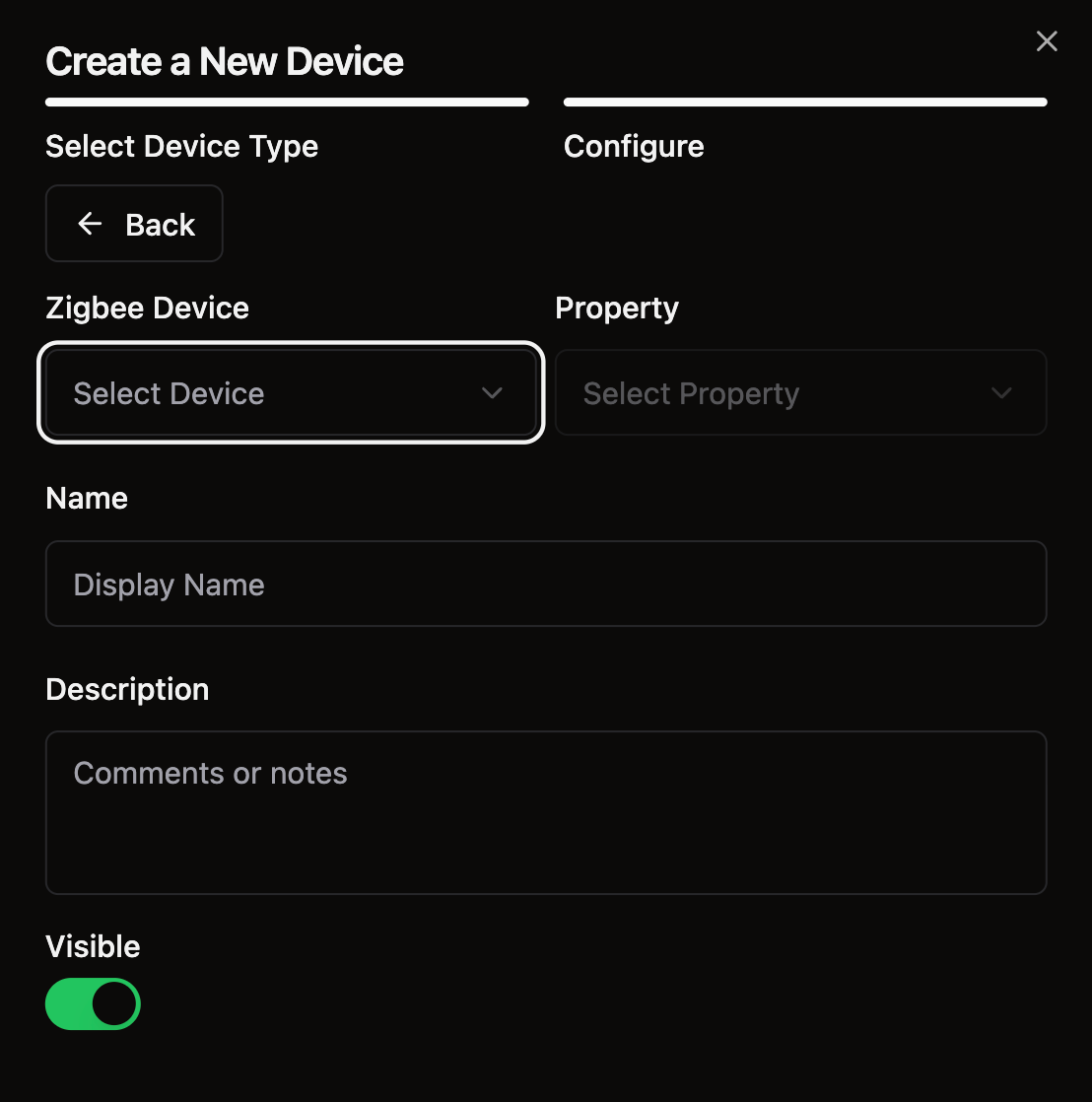
This is where you can add device controls to your Playbook Game. Select New Device and pick what kind you’d like to add - PLC controlled, Zigbee, or DMX light.
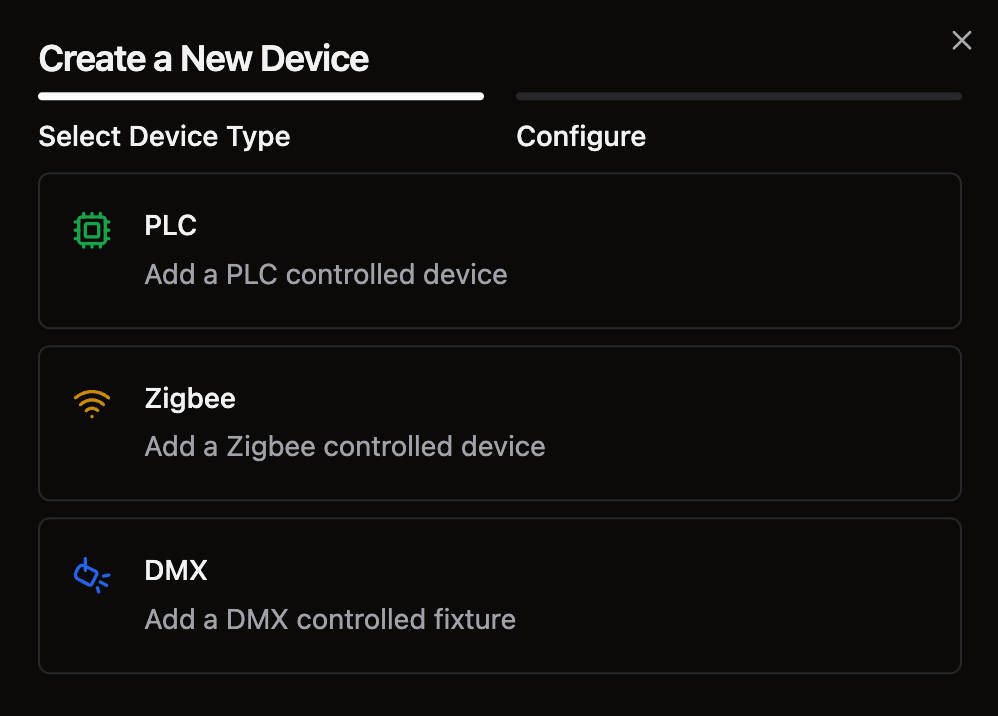
DMX light controls
PLC Device Controls
Zigbee Device Controls
Actions
Actions are only applicable if your Playbook game is using devices.
Still need help? Share an idea