Custom Screens
Custom screens let you integrate your own display panels — TVs, tablets, kiosks — directly into Drawbridge. This guide covers how custom screens work, and how you can create one with Drawbridge.
Written By Drawbridge Support
Last updated 3 months ago
What are screens for?
Custom screens are displays that can communicate directly with players, respond to interaction, and add immersion to your escape experience. Drawbridge manages these screens based on actions that you define.
How Drawbridge talks to your screen
Drawbridge sends your screen commands through actions.
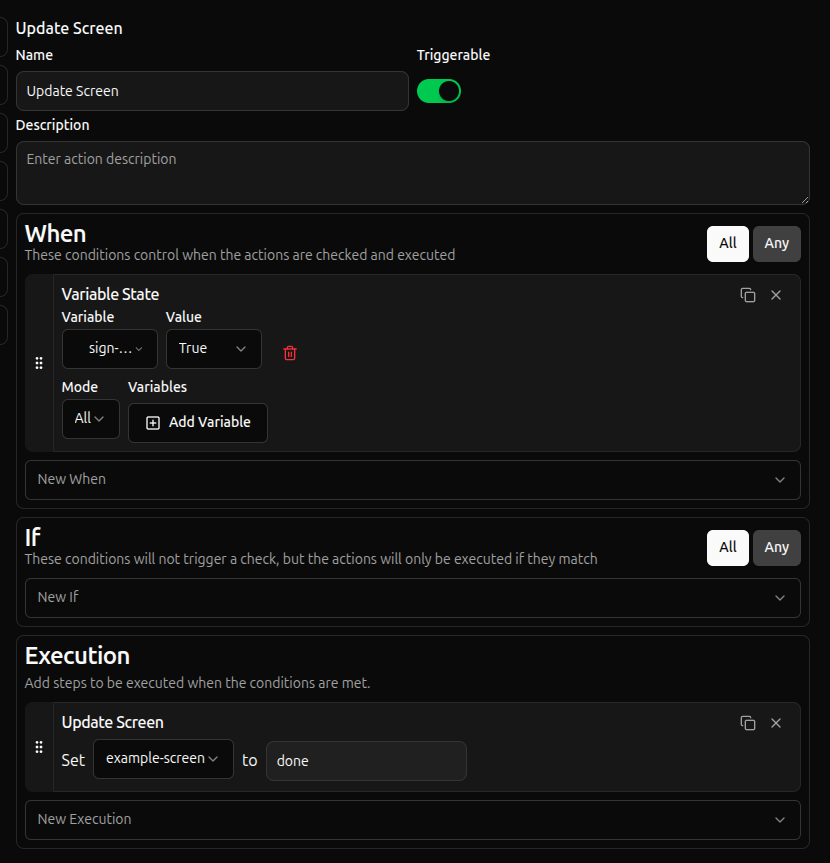
Actions
Actions are condition-execution pairs that you can configure for each of your playbooks. Create logic that listens to triggers in your game and reacts. Read more about actions here.
There are two action executions that can communicate with your custom screen:
Update Screen: The “Update screen” command sends a message directly to your screen and triggers the
onScreenChange()callback in your screen’s code. You can utilize this execution to change which display is currently showing. By linking actions to screen updates, a single screen can serve different purposes throughout your game and can even become part of a puzzle itself.SSH: The SSH command lets Drawbridge send specific instructions to specific devices — turning off a light, rebooting a device, or triggering any other hardware action. An action in your playbook can be linked to an SSH command to make it execute on the right device at the right moment.
In your screen code, you listen for update screen commands using onScreenChange() :
import { DrawbridgeConnection } from "@drawbridgesolutions/js-sdk";

const connection = new DrawbridgeConnection({
  screen_name: "lobby-display",  // must match your screen project name
});

connection.onScreenChange((screen) => {
  switch (screen) {
    case "idle":    showIdleScreen(); break;
    case "intro":   showIntroVideo(); break;
    case "puzzle":  showPuzzleScreen(); break;
    default:        showIdleScreen();
  }
});
The screen_name must exactly match the name configured in your custom screen project and playbook settings
How your screen talks to Drawbridge
Screens report state back to Drawbridge using variables/ A variable can be created in your playbook settings to track any piece of information that is subject to change throughout your escape experience (ex: a button being pressed).
Variables can be used in action as conditions. In your custom screen, you can update a variable directly using setVariable():
// Signal that a puzzle is complete
connection.setVariable("VAULT_PUZZLE", "DONE");

// Validate a keypad entry
function checkCode(entered) {
  connection.setVariable(
    "KEYPAD_CODE",
    entered === "7734" ? "CORRECT" : "WRONG"
  );
}

// Track a numeric score
connection.setVariable("PLAYER_SCORE", 4200);
Variable names are case-sensitive and must match exactly what's configured in your Drawbridge playbook.
Getting Started
Prerequisites
Install the following before starting your screen project:
NPM: Open Powershell and run this command: “npm install -g npm”.
Node.js: https://nodejs.org/en/download
Once installed, scaffold a new screen project with our CLI:
npm create @drawbridgesolutions/screen@latestyarn create @drawbridgesolutions/screenpnpm create @drawbridgesolutions/screenKey API Methods
Deploying your screen to Drawbridge
Drawbridge screen projeccts use Vite as their build tool. Before building, you must configute the Vite base option to match the path where Drawbridge will serve your screen.
Set the Vite base path
In your vite.config.js (or vite.config.ts), set base to match your screen’s name exactly:
// vite.config.js
export default defineConfig({
  base: "/custom/screens/YOUR_SCREEN_NAME"
})
The screen name in the base patch must match your screen_name exactly, A mismatch will cause your assets to fail to load when served by Drawbridge.
Add your screen to the playbook
Once the base path is set, follow these steps to upload your screen:
Build your project
Run the build command to generate the production output in the
dist/folder
npm run buildyarn buildpnpm buildZip the build output
Compress the
dist/folder into a.zipfile.Upload to your playbook
In Drawbridge, navigate to Settings > Your Playbook > Screens and add a new custom screen with the
.zipfile of yourdist/folder. Click the View button to launch your screen in a new tab.
If you make edits to your custom screen’s code, you will need to repeat these steps.
Additional Resources
Custom Screens SDK Documentation - examples and docs about using the SDK
Custom Screen CLI Tool - for scaffolding your custom screen project
Still need help? Share an idea