v1.21.0 - Game Master Controls, Maintenance Labels, and Game Control
Quick hint customizations, labelling maintenance items as safety issues, and more!
Game Master Page Updates
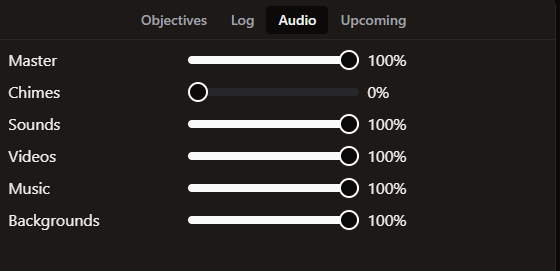
GM Volume Control
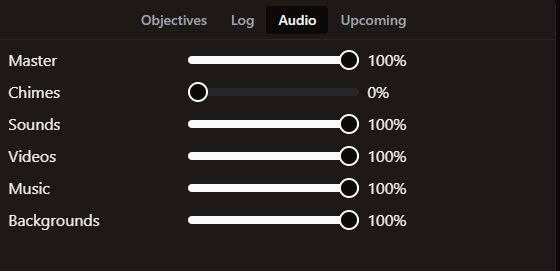
GMs can now control in-game volume through the GM page
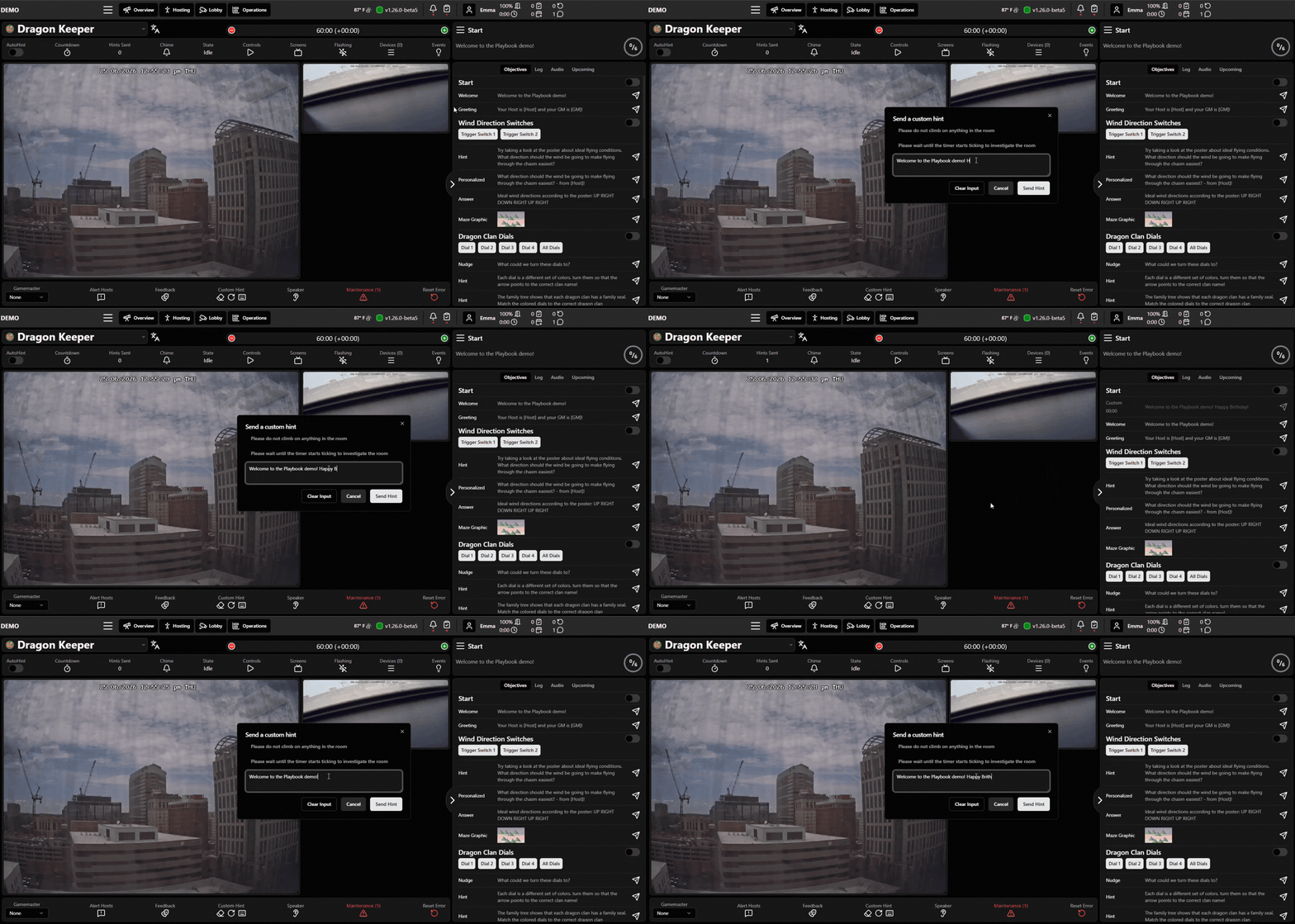
Hint Customization: Pin/Skip hints for Autohint, Click to Edit
Game Masters can now click on a hint to open the custom hint box with that hint inside. They can then edit that hint and send it or close the custom hint box and send it later.
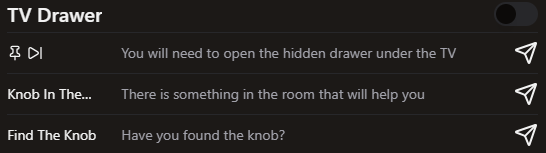
They can also Pin or Skip hints for AutoHint by hovering over the name of the hint. When hovered over, two symbols will appear, a pin and skip.
Pinning a hint will move it to the top of the objective and Autohint will select that hint to send next.
Skipping a hint means that hint (and the ones before it) will not be selected by Autohint, it will skip down to the first hint below whichever one was skipped.
If there is text in the custom hint box, that will always be selected first.
Overview Changes
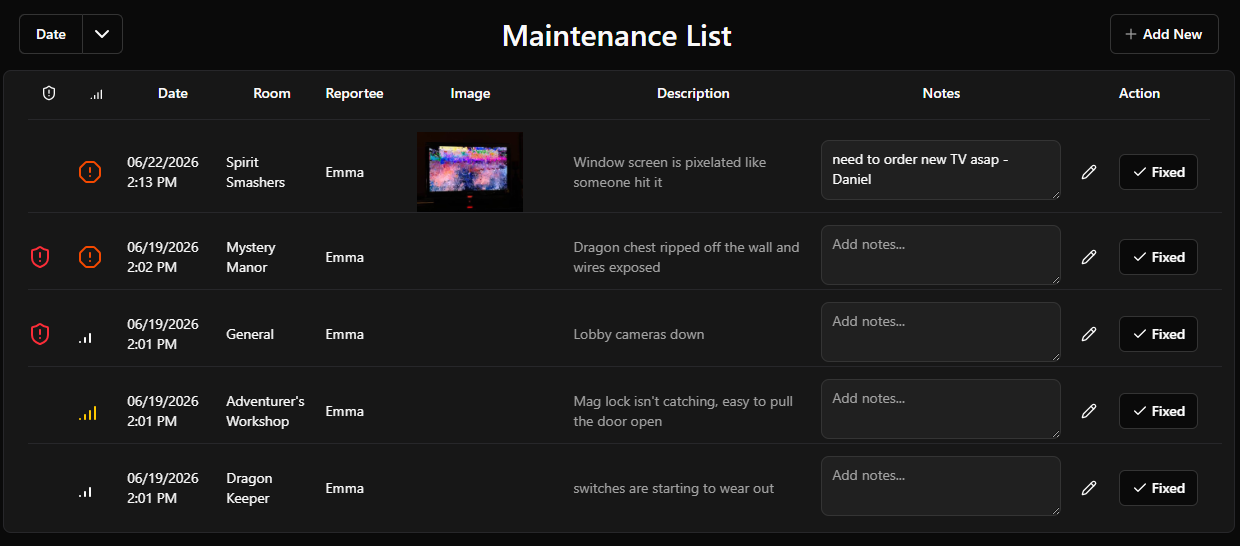
Severity and Safety Warnings on Handyman Items
Handyman items can now be flagged as a safety issue (the red shield), and the impact to the game can be specified (anywhere from Fix Soon to Game Down). The Overview dropdown will bring safety issues to the top and then rank by severity level.
Forecasted Overview
A third option in the Staffing Hours/Game metric. Forecasted Hours will take historical data from the last 4 weeks and apply it to today. So on a Monday, it would take data from the last 4 Mondays and apply it to todays staffing to let you know what to expect.
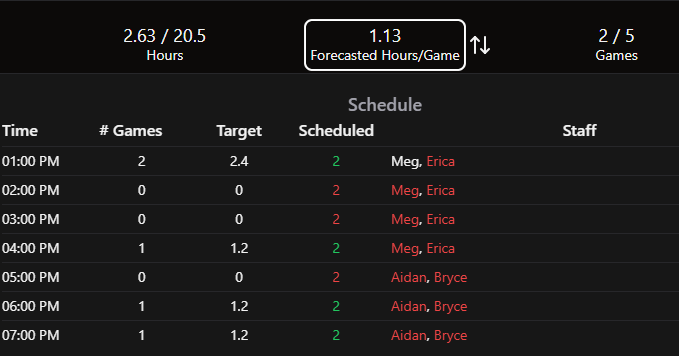
This menu will also highlight what employees should be sent home based on hours worked vs scheduled. It will highlight the employee that has worked a higher percentage of hours as the one who should be sent home. This is designed to help spread available hours more fairly across staff instead of the same person being told not to come in over and over.
Example: Employee One is scheduled for 20 hours and has only worked 5 (5/20). Employee Two is scheduled for 30 hours and has worked 15 (15/30). Employee Two would be highlighted to be sent home because they’ve worked 50% of their scheduled hours and Employee One has only worked 25% of their scheduled hours.
If there’s not a large difference, both employees would be highlighted since someone still should be sent home.
Goals on the Overview Page
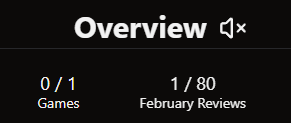
Any active goals you set up will appear on the overview page. If you have multiple active at once, you can click to scroll between them.
Access Pin for Settings
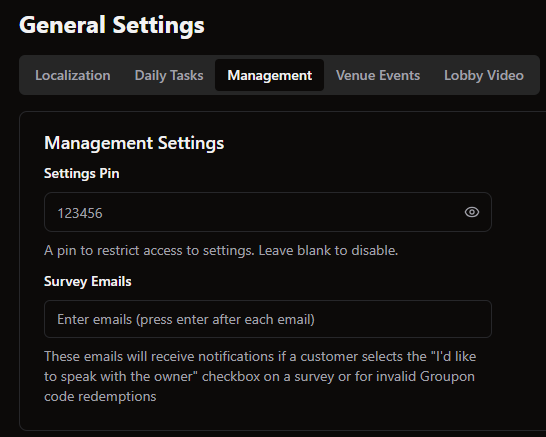
You can set an access pin to restrict access to all settings under General Settings → Management. This can be characters or numbers.
Once you log in with the pin, it will remember you until the page is refreshed. So if you’re logging in on a shared device, make sure to refresh Drawbridge before handing it off to others unless you want them to have access.
The password is applied globally, so make sure to share it with that anyone who needs to know it.
Show More Lobby Cameras
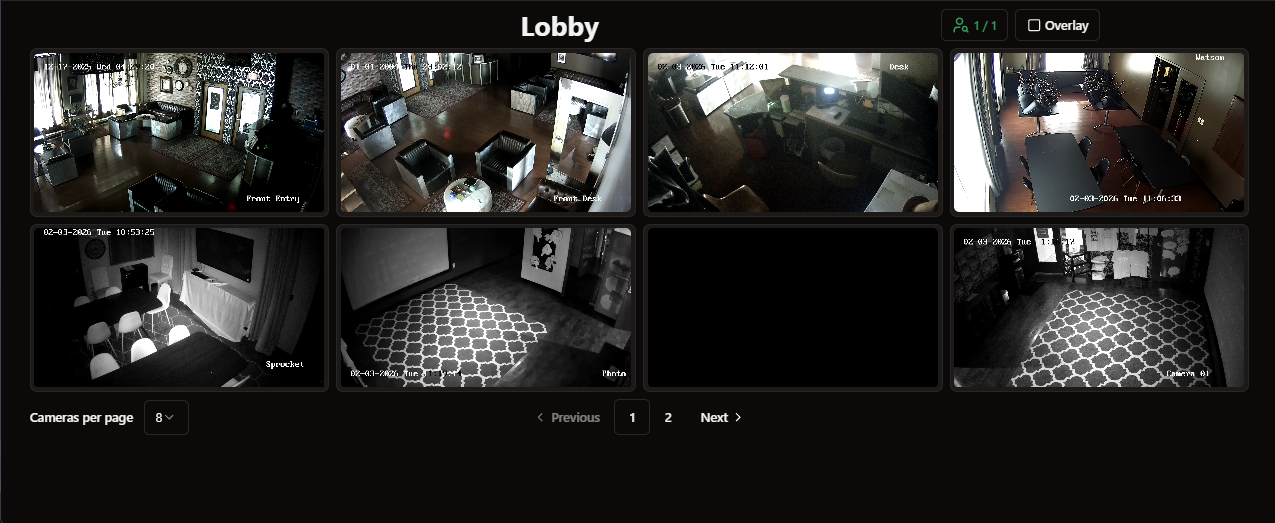
You can now show additional cameras at once on the lobby cameras page (6, 8, 10, 12, 24), allowing you to view your entire venue at once!
Game Control
Drawbridge now supports a variety of devices and game triggers for running games!
Display Media
Briefing, Running, Win, Loss, and Idle videos, images, and audio
Hint Chime
Custom audios to play via game triggers
Devices
PLC
Enttec DMX Pro (USB)
sACN DMX (Network)
MQTT
Tuya
Triggers
Conditions
Game State
Device State
Game End (Win/Loss)
Variable Change
Actions
Trigger a Device
Wait
Request a Hint
Close an Objective
Change DMX Light Channels
Start/Pause/Resume Audio
End Game (Win/Loss)
Set Variable
Reset Game
Nested Action (Trigger Another Action)
Miscellaneous
Custom alerts will use the color from the most recent alert instead of the first alert
Added Kids Mode icon on to hosting popup
Add a a “Show All” button for staff selects on shift report
Remove filtering of objective times from objective names ( - 55 minutes)